
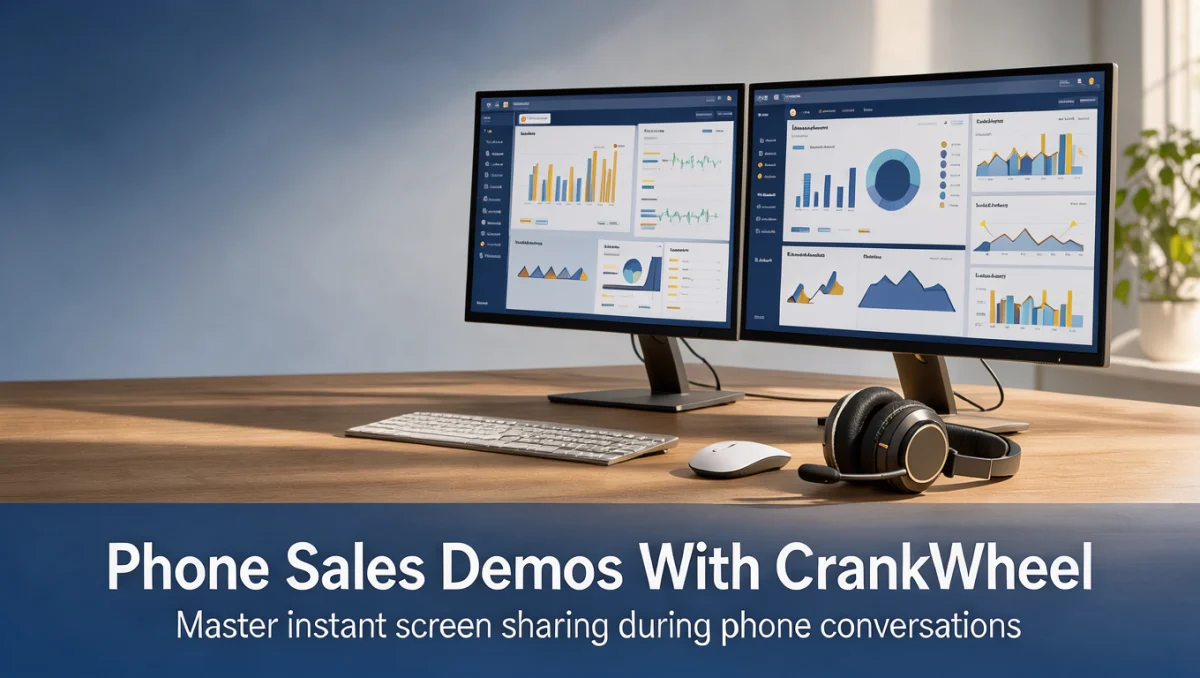
Visual context can transform a routine voice call into a focused product walkthrough, and you do not need to schedule a formal meeting to get there. Inside sales reps often hit a wall when a prospect asks to see something mid-conversation. Lightweight screen sharing closes that gap, and knowing how to run a sales demo over the phone with crankwheel lets you move from discussion to demonstration in seconds.
Our editors at Best Coupon Blogs evaluate tools based on whether they remove real operational friction rather than adding technical overhead. Phone-based presentations only work when the process is predictable, so a repeatable framework matters as much as the software itself.
Quick verdict: CrankWheel scores 7.8 out of 10 for sales professionals who want straightforward screen sharing during voice calls. It suits phone-first teams that need to deliver visuals without calendar invitations. Organizations that depend on full virtual conference rooms or unified team collaboration should compare alternatives.
| Metric | Assessment |
|---|---|
| Best Coupon Blogs score | 7.8 / 10 |
| Best for | Inside sales agents and phone-based representatives who need visual sharing during active calls |
| Not ideal for | Organizations looking for collaborative web meeting rooms with breakout areas and persistent chat |
| Key strengths | Instant screen sharing during live calls, link delivery by text or email, no installation required for prospects |
| What to check before buying | Confirm user license definitions and outbound communication allowances on the official vendor website |
1. How Best Coupon Blogs Reviewed CrankWheel
This review examines what CrankWheel is designed to do, who it serves, and how it compares with similar tools. We apply seven criteria: features, ease of use, pricing and value, integrations, audience fit, support and competitive position. Plans, prices and limits change frequently, so we flag what to verify on the official website before purchasing. This article was researched and drafted with AI assistance, then reviewed and edited by the Best Coupon Blogs Editorial Team.
2. Preparing Before You Start the Phone Demo
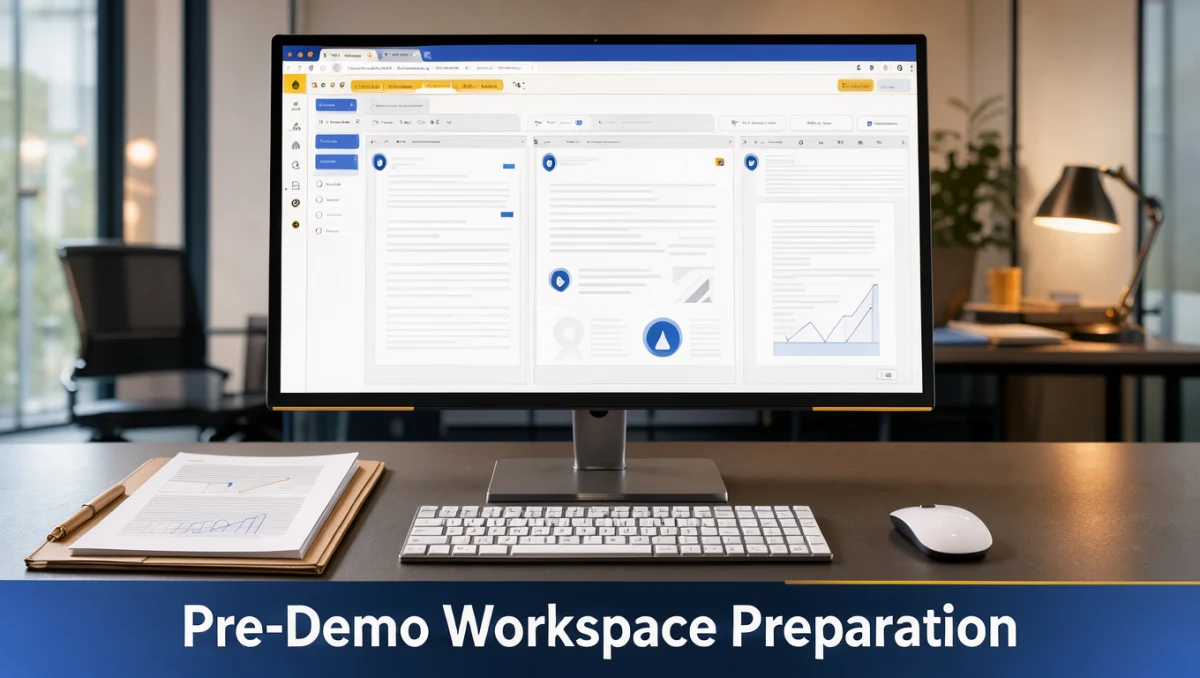
A successful call depends on preparation. Screen sharing tools rely on the presenter keeping the digital workspace clean, so that client records or personal browser tabs stay hidden. Before dialing or answering, organize your presentation assets so they live inside a single, dedicated window.
2.1. Organizing the Digital Presentation Space
Close unneeded browser windows, silence messaging notifications, and confirm that your demonstration environment or test account is active. Because phone-driven sharing can expose a browser tab or full desktop, isolating materials in a dedicated window prevents accidental exposure of internal notes. A separate browser profile for customer demos keeps bookmarks tidy and lets prospects focus on value slides or product workflows.
2.2. Building Rapport on the Call
Never push a prospect onto a digital link without context. Confirm they have an internet-connected device, whether a desktop monitor or a mobile handset, before suggesting a visual walkthrough. Clear vocal communication and active listening build trust long before any slide appears on their screen.
3. Step-by-Step Workflow for Phone Demos
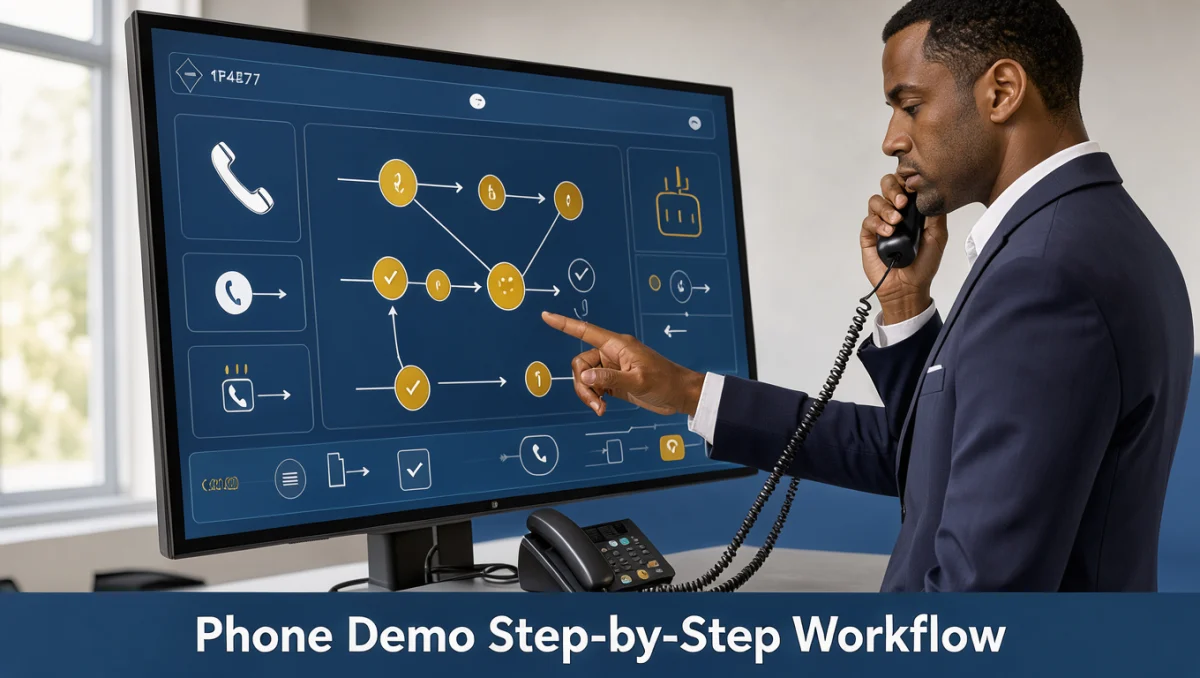
Running a live presentation while keeping the voice conversation going follows a four-stage process. Each stage minimizes friction for prospects who may have limited patience or access permissions.
3.1. Step 1: Starting the Visual Session
While continuing the conversation, open your sharing utility to create a secure viewing pathway. Phone-oriented platforms typically avoid requiring prospects to install native executables, relying instead on secure browser viewing. Select the specific window or application that contains your visuals so peripheral desktop elements stay hidden.
3.2. Step 2: Sending the Access Link
Send the viewing pathway through whichever channel matches the prospect's current setup. You can text the link to a mobile device, email it directly, or have the prospect visit a public address and enter a temporary numeric code. Guiding them verbally through the process keeps the call moving and avoids awkward silence.
3.3. Step 3: Guiding the Visual Discovery
When the system confirms the prospect has opened the stream, walk through your materials at a deliberate pace. Telephone audio and visual data travel separately, so confirm they are following along by describing prominent on-screen landmarks. Use your cursor to point out specific elements and ask open-ended questions about their workflow to check comprehension.
3.4. Step 4: Wrapping Up and Next Steps
End the screen share before hanging up so closing dialogue returns to the conversation. Stop the stream from your control panel, ask whether the prospect has remaining questions about what was shown, and agree on concrete next steps by phone. Sending a follow-up summary right after the call reinforces commitments made during the presentation.
4. Best Practices for Phone Screen Sharing
Visual calls demand different techniques than scheduled video meetings. Without webcam cues, presenters must rely on structured verbal direction and deliberate cursor movement to hold attention.
4.1. Maintaining Verbal Control and Pacing
Narrate each transition before making large navigation jumps across dashboards or slide decks. Latency can fluctuate with local network conditions, so rapid scrolling may look blurry to the viewer. Pause for two or three seconds after switching screens to give the display time to refresh fully.
4.2. Keeping Documents and Dashboards Readable
Dense tables and small fonts strain viewers, especially those watching on compact mobile displays. Increase browser magnification so key data points, callouts and navigation links stay legible. Limiting the presentation to core value screens prevents fatigue during unscheduled calls.
5. Common Mistakes to Avoid
Even experienced agents stumble when adding visuals to a phone conversation. Avoiding these errors keeps sales conversations moving forward.
- Assuming an instant connection: Never assume the prospect opened the feed; ask them to name the headline they see on screen.
- Sharing the entire desktop unnecessarily: Full-monitor sharing risks exposing confidential customer records, internal chats or unrelated documents.
- Ignoring mobile viewing realities: Prospects who open a text link often view on smartphones, so position visuals for smaller screens.
- Letting visuals replace dialogue: Screen sharing should support a conversation, not turn into a one-way monologue.
6. Who Should Use CrankWheel for Phone Sales
Whether phone-oriented screen sharing fits your model depends on your outbound cadence and how digitally comfortable your buyers are.
6.1. Freelance Consultants and Solo Operators
Freelancers delivering agency services, marketing advisory or technical consulting can use instant screen sharing to explain proposals over the phone. Directing a prospect to a live visual without formal calendar invitations shortens consultative sales cycles.
6.2. Inside Sales Teams in High-Velocity Industries
Teams handling large volumes of inbound inquiries or outbound calls benefit because the tool removes booking friction. In sectors such as insurance, logistics, financial services and merchant processing, turning a phone inquiry into a visual demonstration immediately can meaningfully shorten pipeline timelines.
6.3. Teams That Should Consider Alternative Platforms
If your process requires two-way webcam interaction, collaborative co-editing or persistent breakout rooms, a standard web conferencing platform will serve you better. Enterprise buyers with strict firewall policies that block external streaming links should also confirm connectivity before rollout.
7. Frequently Asked Questions
What hardware do I need to run phone sales demonstrations?
You need a stable computer with an updated web browser, a reliable broadband connection, and a separate voice line such as a landline, cell phone or business softphone. Audio stays on your phone network while visuals stream over your internet connection.
How do prospects connect without downloading extra software?
They open a secure link sent by email or text in a standard browser on a computer, tablet or smartphone, or they visit a designated address and enter a temporary code you read aloud during the call.
How should teams evaluate licensing for phone demo software?
Check whether pricing is calculated per presenter seat or shared across a pooled group, and review the official CrankWheel pricing page to confirm current seat allowances and tier features.
Does screen sharing work well if the prospect is on a mobile phone?
Visual streams built for telephony sales generally render in modern mobile browsers without special apps. For mobile viewers, orient your presentation horizontally and raise graphic contrast so visuals stay legible on smaller screens.
8. Final Verdict: Running a Sales Demo Over the Phone With CrankWheel
Mastering phone demonstrations gives inside sales teams a clear tactical edge on exploratory calls. Pairing phone rapport with immediate, low-friction visual proof removes technical hurdles and speeds up buyer discovery.
| Criterion | Score / 10 | Reason |
|---|---|---|
| Features | 7.8 | Focused toolkit built for voice-coupled screen sharing without heavy meeting management features |
| Ease of Use | 8.8 | Straightforward for both agent and prospect, with no software installation on the customer side |
| Pricing and Value | 7.5 | Buyers should weigh ROI against seat allocations on the official vendor website |
| Integrations | 7.0 | Covers core outbound needs, but verify specific CRM pairings independently |
| Audience Fit | 8.5 | Strong alignment with phone-driven inside sales agents and rapid remote prospect engagement |
| Support | 7.2 | Standard self-directed documentation and support channels worth reviewing before company-wide onboarding |
| Competitive Position | 8.0 | Distinct niche compared with heavyweight unified conferencing and video collaboration platforms |
Overall Best Coupon Blogs Score: 7.8 / 10
For sales professionals and inside sales groups that want to remove calendar friction and show visual proof during live calls, CrankWheel offers a streamlined approach. Enterprises that need unified calendar ecosystems, native webinar broadcasting or full participant collaboration should evaluate traditional web conferencing alongside dedicated phone sharing tools.
Readers with questions about sales presentation workflows or software evaluations can reach us through our contact page or join our professional network on LinkedIn.
See More Collaboration & Productivity