
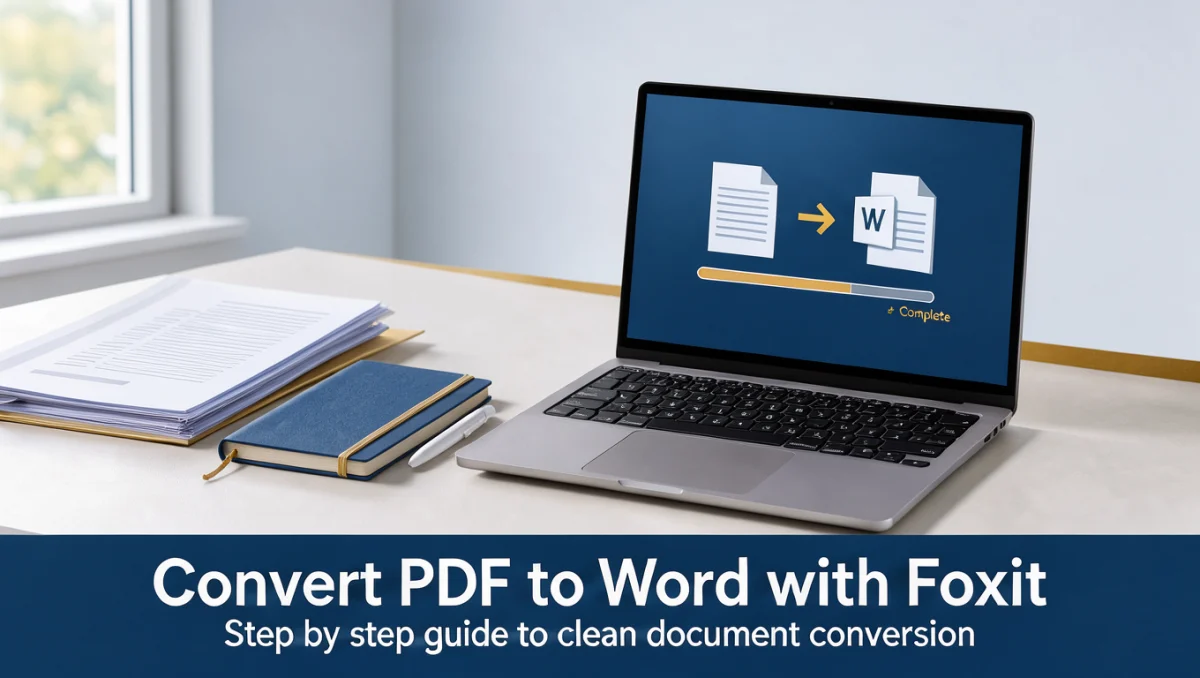
Many office professionals run into fixed PDFs that need last-minute edits, such as revised agreements or updated figures inside tables. Rebuilding those files by hand wastes time. Learning how to convert PDF to Word with Foxit PDF Editor gives teams a faster path to editable documents, and this guide walks through the process from preparation to final review.
Foxit PDF Editor is built for managing page structure, updating digital forms, and exporting existing layouts into alternative text formats. It is especially useful for teams that revisit the same records again and again. Before you begin, it helps to understand which parts of the conversion need attention so the output stays accurate.
Foxit PDF Editor earns an overall score of 7.9/10 for document management tasks. It fits administrative staff, legal assistants, and enterprise teams that handle ongoing revisions and need structured exports. Occasional users who only need a single conversion may find lighter tools sufficient.
| Metric | Summary |
|---|---|
| bestcouponblogs score | 7.9/10 |
| Best for | Office teams, legal operations, and administrators managing ongoing PDF revisions and reformatting |
| Not ideal for | Individuals who need only infrequent single-page exports without long-term editing software |
| Key strengths | Direct text manipulation, structured export into editable formats, and form handling |
| What to check before buying | Licensing options and deployment requirements on the official vendor website |
1. How bestcouponblogs Reviewed Foxit PDF Editor
This review considers what Foxit PDF Editor is designed to do, who it serves, and how it compares with similar tools. We assessed it against seven bestcouponblogs criteria: features, ease of use, pricing and value, integrations, audience fit, support, and competitive position. Plans, prices, and limits change often, so confirm current details on the official website before purchasing. This article was researched and drafted with AI assistance, then reviewed and edited by the bestcouponblogs Editorial Team.
2. Before You Start the Conversion Process
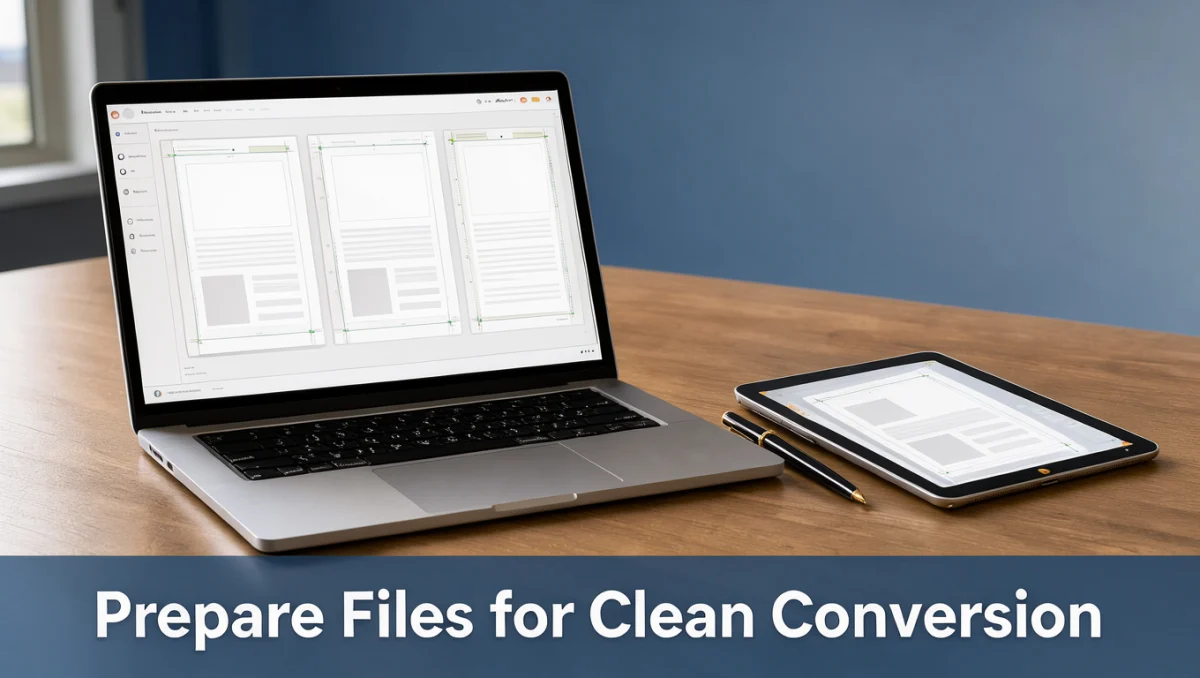
Checking the source document before launching a conversion prevents surprises in the final text file. In modern office workflows, output quality depends heavily on how the original file was built.
2.1. Inspect Source Document Types
Start by determining whether your PDF contains selectable digital text or scanned images. Digital files keep character data, font properties, and structural boundaries, so they convert cleanly. Scanned pages, by contrast, are made of image pixels and need optical character recognition to become editable. Vendor documentation on text recognition can guide you through the recommended steps for image-heavy files.
2.2. Evaluate Layout Complexity
Multi-column articles, detailed financial statements, and documents with nested tables pose specific challenges when moving into a word processor. PDFs fix text to exact coordinates, while word processors rely on flowing paragraphs, tab stops, and dynamic wrapping. Noting decorative callouts, background graphics, and headers before export helps you spot sections that may need manual adjustment later.
3. Getting Started Workflow for Exporting to Word
Converting with Foxit PDF Editor follows a clear sequence, from opening the file to producing a structured document.
3.1. Document Ingestion and Integrity Check
Open the source file in the editor and review page orientation throughout. Make sure landscape exhibits and portrait narrative pages display correctly. If the file includes form fields or annotations, decide whether they should merge into the main body or be removed before exporting.
3.2. Selecting the Target Export Format
Find the conversion options in the export workspace and choose a standard word-processing format as your destination. Modern formats suit most pipelines, though older formats remain available when compatibility with legacy office systems is required. Confirm on the official Foxit PDF Editor product pages whether optical character detection must be enabled for scanned documents.
3.3. Configuring Processing Parameters and Output Location
Set export options based on how the converted document will be used. If visual fidelity matters most, for example for printing, retaining text bounding boxes helps preserve column positions. If you plan heavy editing, choosing settings that favor flowing paragraphs makes drafting easier in the word processor. Save the result to a dedicated work folder with clear version labels.
4. Best Practices for High-Fidelity Conversions
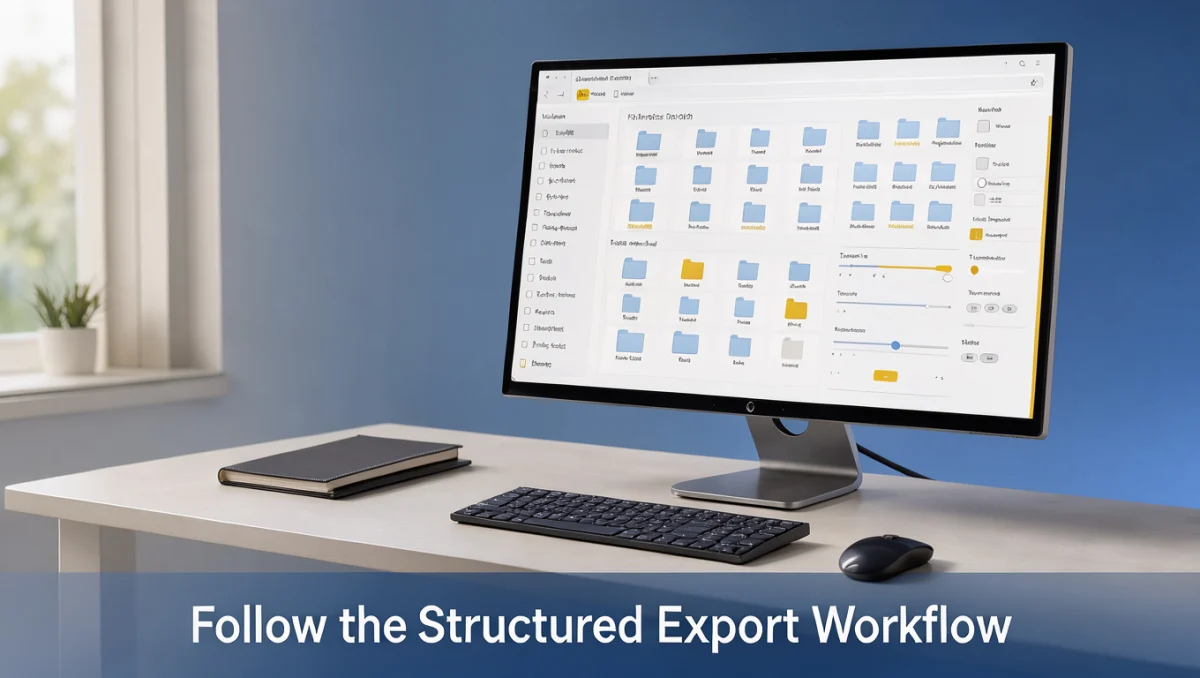
Consistent habits when handling complex documents protect formatting accuracy and reduce cleanup after export.
- Standardize page orientation so the conversion engine reads mixed layouts in the correct order.
- Remove stray comments and highlight notes before generating editable drafts to avoid floating text frames.
- Check table borders in the word processor right after conversion to confirm rows stay aligned.
- Review font substitutions when opening files on systems that lack the original corporate typefaces.
- Verify equations, special symbols, and vector diagrams against the original reference.
5. Common Document Conversion Mistakes to Avoid
Most conversion errors come from how the source was prepared rather than from the software itself. Knowing the common pitfalls keeps daily output consistent.
5.1. Overlooking Scanned Character Layers
Converting flat scanned pages without character recognition produces blank or image-only documents. Always run recognition on non-selectable text so the letters become editable content rather than locked images.
5.2. Ignoring Font Replacements
When a file uses custom commercial typefaces, the word processor substitutes nearby standard fonts. That change can shift line breaks, push content onto extra pages, or distort financial tables. Reviewing font substitution settings in your environment helps prevent layout drift.
5.3. Skipping Post-Export Structural Review
Do not send a converted contract or executive briefing to stakeholders without checking page breaks and tables. Review headers, footers, footnote references, and page numbering to keep the document professional.
6. Frequently Asked Questions
How should buyers decide whether dedicated PDF editing software is necessary?
Evaluate how often you work with documents and how complex those workflows are. If your organization regularly edits confidential contracts, manages complex tables, or reorganizes formal records, dedicated software gives you centralized control. Users who only read documents occasionally often find simpler viewers or bundled office utilities sufficient.
What factors influence formatting accuracy during document conversions?
Accuracy depends mainly on the original file's structure, whether it has digital text layers or raster scans, and how complex its tables and columns are. Documents built with clean digital typography convert more precisely than scanned historical records.
What should teams verify before purchasing corporate document editing tools?
Check deployment guidelines, multi-user administration, system compatibility, and which features each plan tier includes on the official vendor website. Understanding your team's scale helps you avoid paying for capabilities you will not use.
How can organizations maintain document layout consistency across converted files?
Use standardized style templates in the word processor, check table formatting immediately after export, and confirm font compatibility across all workstations. An internal quality checklist keeps formatting discrepancies from reaching external partners.
7. Final Verdict on Foxit PDF Editor
Foxit PDF Editor offers capable document manipulation, flexible export options, and structural editing for professional settings. Teams that regularly revise legal texts, update technical manuals, or convert fixed PDF forms into editable formats will benefit from its structured conversion process.
| Criterion | Score /10 | Reason |
|---|---|---|
| Features | 8.5/10 | Comprehensive PDF editing, page management, and multi-format conversion |
| Ease of Use | 7.5/10 | Organized workspace with familiar layout conventions, though advanced conversion settings take some time to learn |
| Pricing and Value | 7.5/10 | Review subscription tiers and licensing models on the official vendor website to judge cost fit |
| Integrations | 7.0/10 | Check official developer documentation for enterprise content management and storage connectivity |
| Audience Fit | 8.5/10 | Well suited for administrative specialists, corporate teams, and operations departments with ongoing document workflows |
| Support | 7.5/10 | Check available support channels, documentation resources, and service hours on the vendor site |
| Competitive Position | 8.5/10 | Established alongside leading document utility brands in the office software market |
| Overall score | 7.9/10 | A solid, functional choice for professional conversion and file management |
For office administrators, contract managers, and enterprise teams that need consistent conversion results, Foxit PDF Editor is a reliable choice. Individuals who handle basic, rare tasks should compare lighter alternatives before committing to a dedicated document platform.
Have questions about choosing the right document tool for your workflow? Send them to our team at https://bestcouponblogs.com/contact/ or connect with bestcouponblogs on LinkedIn at https://www.linkedin.com/company/bestcouponblogs/.
See More Collaboration & Productivity · Best Coupon Blogs