
bestcouponblogs may earn a commission when you buy through links on this page, at no extra cost to you. This does not affect our ratings.
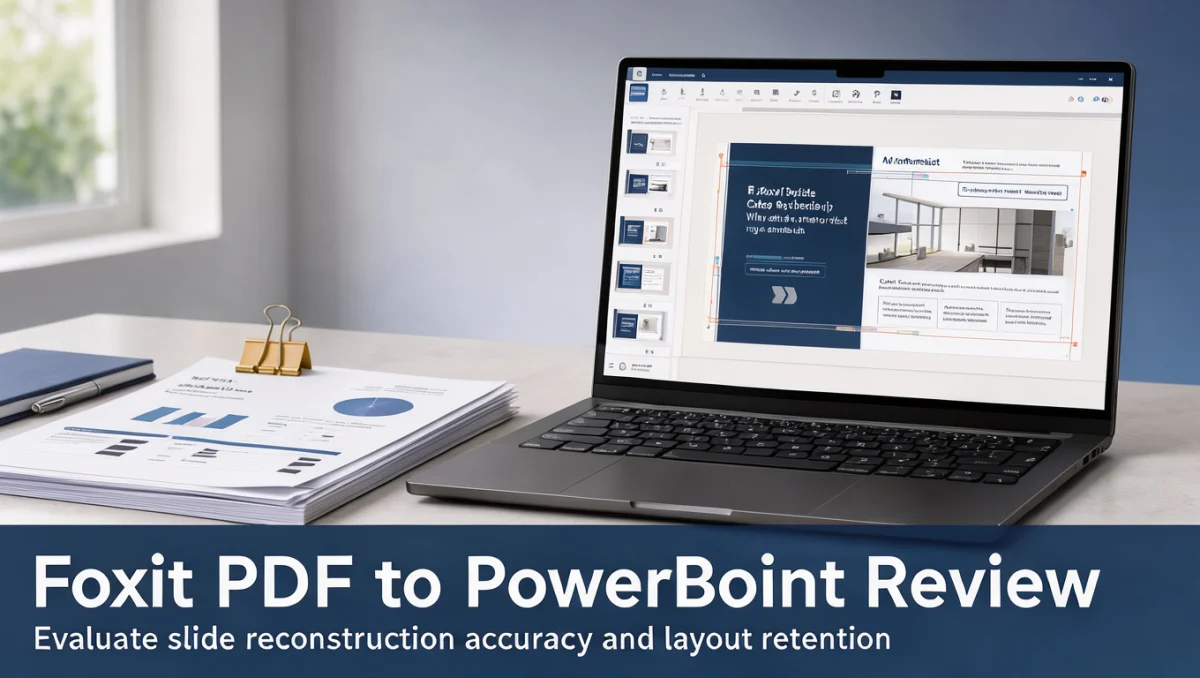
Locked reports and handout decks often hold the material your team needs for its next presentation, but rebuilding those slides by hand eats time. foxit pdf to powerpoint conversion offers a direct route from static pages to editable presentation slides, letting professionals reuse existing content without retyping or redrawing every element.
1. How bestcouponblogs Evaluated the Tool
We reviewed the software against seven bestcouponblogs criteria: features, ease of use, pricing and value, integrations, audience fit, support, and competitive position. Plans and limits change frequently, so confirm current details on the vendor's official website before purchasing. This article was researched and drafted with AI assistance, then reviewed and edited by the bestcouponblogs Editorial Team.
2. What the Tool Does and Who Uses It
Foxit's conversion module belongs to its broader document management suite and transforms fixed-layout files into editable PowerPoint presentations. Instead of copying paragraphs and rebuilding graphics manually, the software maps document elements into native text boxes, shapes, and image layers.
Corporate communicators, project managers, educators, financial analysts, and marketing specialists are the main users. Many teams inherit locked decks or only hold distributed reference copies, and conversion helps them refresh figures, apply new branding, and deliver updated slides.
Within the Collaboration & Productivity space, these utilities are standard for cutting administrative rework and keeping visual assets consistent.
3. Core Features for Slide Conversion
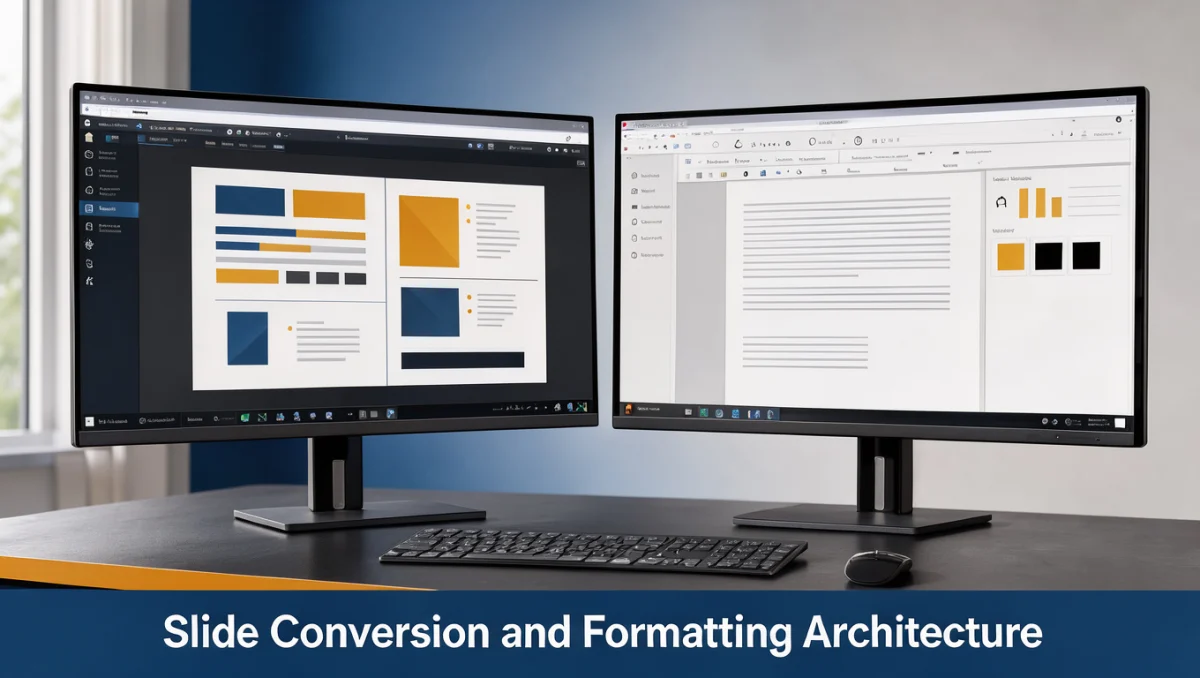
Slide Layout and Geometry Mapping
The software detects individual pages and translates each one into a corresponding slide. Margins, headers, background panels, and visual boundaries are placed onto slide masters or independent objects, so multi-column data sheets and horizontal conference layouts keep their proportions in the presentation file.
Typography and Text Frame Reconstruction
Fixed-layout text does not behave like presentation bullets by default. The tool groups characters into logical paragraphs and matches line spacing, font weights, and alignment. Text sits inside movable boxes, so presenters can edit sentences and reformat lists without disturbing the rest of the slide.
Graphic, Shape, and Table Translation
Vector icons, geometric shapes, and photographs are separated and handled individually. Where the source markup allows, data tables are read as structured table components rather than flat images, preserving rows and columns so analysts can update figures directly.
Pre-Conversion Page Management
Before export, users can delete irrelevant pages, rotate misaligned sheets, crop borders, and reorder content. This keeps unneeded slides out of the final file.
4. Ease of Use and Learning Curve
The interface follows familiar office conventions, with conversion tools arranged in accessible ribbon menus. Users who already work in standard office software will find export buttons, page thumbnails, and transformation settings easy to locate.
The learning curve depends on the source file. Clean, digitally generated documents convert with minimal adjustment. Scanned pages, layered transparency effects, and non-standard embedded fonts usually need manual inspection afterward. If the original typefaces are missing from the host computer, expect to substitute fonts manually.
5. Pros and Cons
Pros
- Maintains slide sequencing from multi-page presentation documents.
- Converts tabular data into editable table cells instead of static screenshots.
- Offers extensive pre-export editing to organize pages before conversion.
- Follows traditional desktop layouts, reducing onboarding time for general staff.
Cons
- Proprietary or unusual embedded fonts may fall back to default system typefaces, requiring formatting fixes.
- Intricate overlays or layered vectors can group into separate boxes that need manual ungrouping.
- Users who only convert a file occasionally may find a full desktop suite heavier than a simple web utility.
6. Foxit vs Similar Tools
Three established families compete in this category: Adobe Acrobat, Nitro PDF, and PDFelement.
| Solution | Target Positioning | Core Practical Strength | When to Consider |
|---|---|---|---|
| Foxit | Comprehensive document editing and agile presentation conversion. | Balanced editing, structured layout export, and established business deployment. | When your organization needs dependable desktop editing with reliable export options. |
| Adobe Acrobat | Foundational document ecosystem with enterprise cloud workflows. | Deep fidelity to original document specifications and broad enterprise integration. | When enterprise-wide standardization around the original creator format is mandatory. |
| Nitro PDF | Business-focused document workflow and batch transformation. | Straightforward distribution workflows and corporate workstation licensing. | When knowledge workers prioritize bulk preparation and standard office exports. |
| PDFelement | Accessible editing for small teams and budget-conscious offices. | Clean consumer-oriented interface with point-and-click restructuring. | When smaller organizations want uncomplicated conversion without enterprise infrastructure. |
Adobe Acrobat remains the reference standard for complex document engineering, Nitro PDF focuses on broad workstation deployment, and PDFelement offers an easy entry point. Foxit sits between these as a feature-rich option that pairs comprehensive editing with efficient file translation.
7. Who Should Use It
Corporate Presenters and Marketers
Marketing and communications teams often receive approved whitepapers or research briefs that must become conference decks. Conversion pulls existing layout frameworks into editable slides and shortens build time.
Educators and Academic Instructors
Teachers and trainers working with syllabus documents, articles, or archived handouts can turn structured material into lecture slides and update points each semester.
Financial Analysts and Accountants
Analysts working from quarterly reports can carry income statement and audit figures into leadership presentations without re-keying sensitive numbers.
Freelancers and Consultants
Independent professionals handling client strategy work can import brand frameworks and outlines directly into their working presentation files.
Who Should Look Elsewhere
Casual users who encounter a document once a year, or students who only need a single quote, do not need a dedicated conversion platform. Manual copying or lightweight utilities will cover those needs.
8. How to Choose the Right Plan
Pricing varies across standalone licenses, recurring subscriptions, individual seats, and organizational packages. Match the licensing structure to your actual conversion volume.
| What to Check on the Official Website | Why It Matters |
|---|---|
| Licensing Model | Subscriptions and perpetual seats differ in recurring cost and update access. Confirm which fits your budget. |
| Desktop vs Browser Availability | Some environments restrict local installs. Verify which options match your team's setup. |
| Batch Conversion Capabilities | Converting many files at once may depend on specific tiers. Check whether batch export is included. |
| Optical Character Recognition Policies | Scanned documents need text recognition before they become editable. Verify how this is provided. |
| Administrative Deployment Controls | Enterprise rollouts need centralized licensing and security management. Confirm admin console inclusions before ordering. |
Vendors adjust package inclusions over time. Verify workstation compatibility and user terms directly with the vendor before finalizing procurement. Browse additional software comparisons in our Best Coupon Blogs resource library.