
bestcouponblogs may earn a commission when you buy through links on this page, at no extra cost to you. This does not affect our ratings.
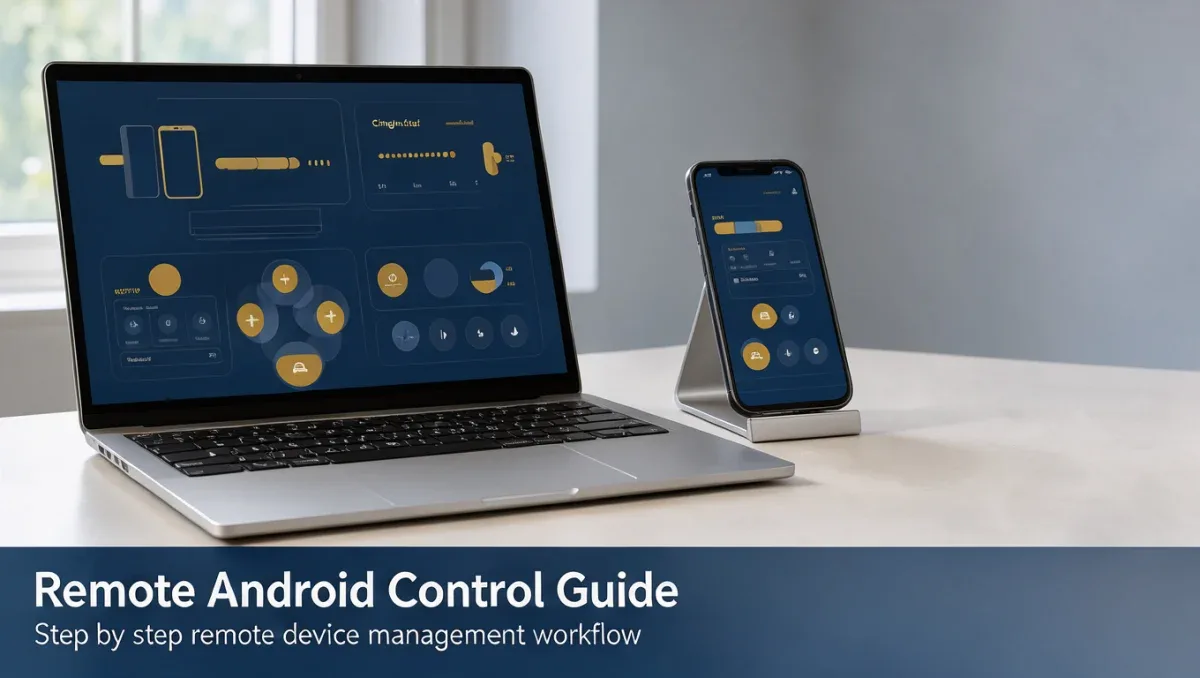
Getting started with remote Android access means first building a trusted link between your management dashboard and the handset you need to reach. Whether you run a support desk or manage a few personal devices, remote administration lets you troubleshoot and maintain hardware without being physically present. For a broader overview, see how to control an android device remotely with getscreen me.
At Best Coupon Blogs, we test remote connectivity workflows to help operators keep sessions stable while protecting device integrity and user privacy.
Quick answer: Connecting to an Android endpoint through Getscreen.me involves creating an operator account, installing the client on the target phone, granting the required system permissions, and starting the session from a browser. Regular permission reviews and network checks keep unattended access reliable across distributed mobile fleets.
| Category | Details |
|---|---|
| Who this guide is for | System administrators, support agents, and individuals managing remote Android devices |
| What you need before starting | A working network connection, administrative access to the target device, and an authorized operator profile |
| What you will have at the end | A repeatable workflow to access, monitor, and troubleshoot remote Android devices |
1. How Best Coupon Blogs Put This Guide Together
This guide pairs the capabilities of the software with our buying framework so you can choose the option that fits your operation. Plans, pricing, and limits change frequently, so confirm current details on the official website before purchasing. This article was researched and drafted with AI assistance, then reviewed and edited by the Best Coupon Blogs Editorial Team.
2. Before You Start
Remote administration needs careful preparation before any live connection. Mobile operating systems enforce strict security boundaries, so background control requires deliberate user approval.
- Confirm you have physical or delegated access to the Android hardware so you can complete initial setup and approve system prompts.
- Verify a stable internet connection on both your workstation and the remote handset to avoid session drops.
- Prepare your organization's administrative credentials and review device ownership policies to stay compliant.
- Record internal escalation contacts in case the remote phone loses its network connection during maintenance.
3. Step-by-Step Workflow
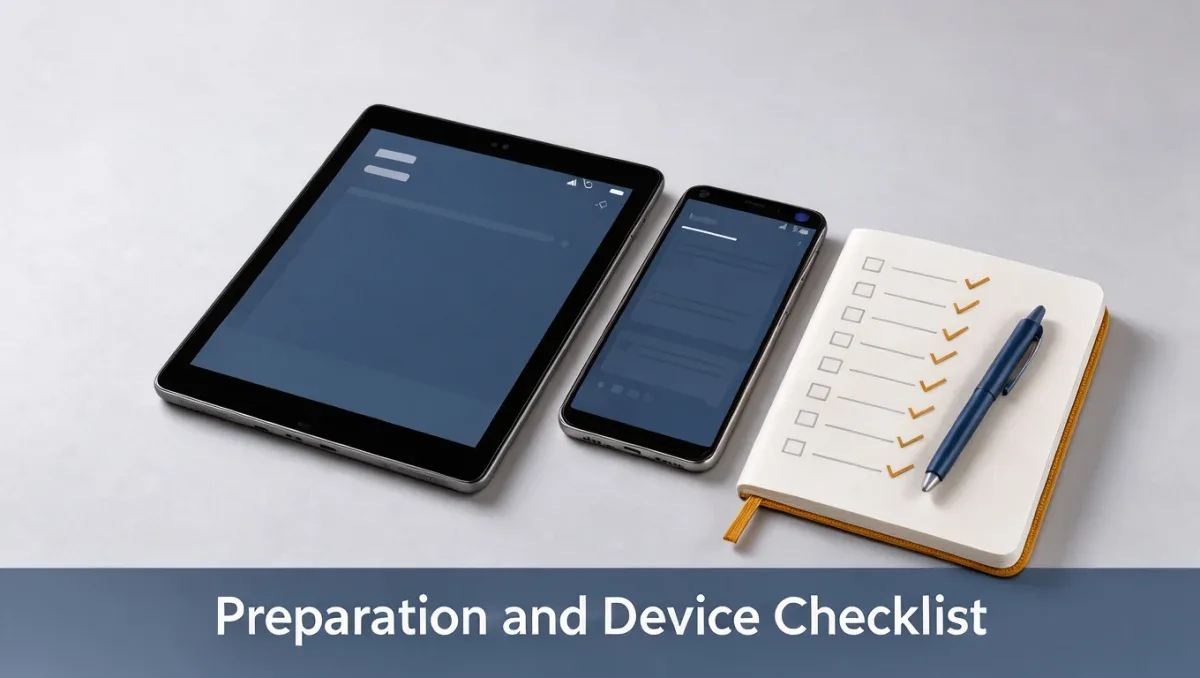
Following these steps in order helps keep the connection stable and access well governed. Check the exact configuration paths in the official Getscreen.me documentation before rolling out to critical environments.
- Register an operator account through the official portal to access your central session dashboard.
- Install the remote client on the target Android device, following the vendor's official installation instructions.
- Grant the required background permissions on the handset, including accessibility and screen-sharing rights, so remote input works.
- Link the mobile client to your admin console using the account pairing code or invitation link.
- Start the session from your workstation browser to confirm real-time screen mirroring and responsive input.
- End the session cleanly when your task is complete to free up resources on the remote phone.
4. Your First 30 Days
Bringing remote mobile management into daily operations works best with structured testing and consistent maintenance habits. The framework below outlines priorities across your first month.
| Week | Routine to build | Why it matters |
|---|---|---|
| Week 1 | Test connection speed and input responsiveness on non-production devices | Helps operators understand connection behavior before supporting live end users |
| Week 2 | Audit accessibility and battery optimization exceptions on every configured device | Prevents the operating system from silently stopping background remote services |
| Week 3 | Set up session logging and an operator credential rotation schedule | Protects internal infrastructure and keeps verifiable compliance records |
| Week 4 | Review bandwidth usage and handover procedures for active remote troubleshooting | Keeps support standards consistent and avoids network congestion at peak hours |
5. Common Mistakes and How to Avoid Them
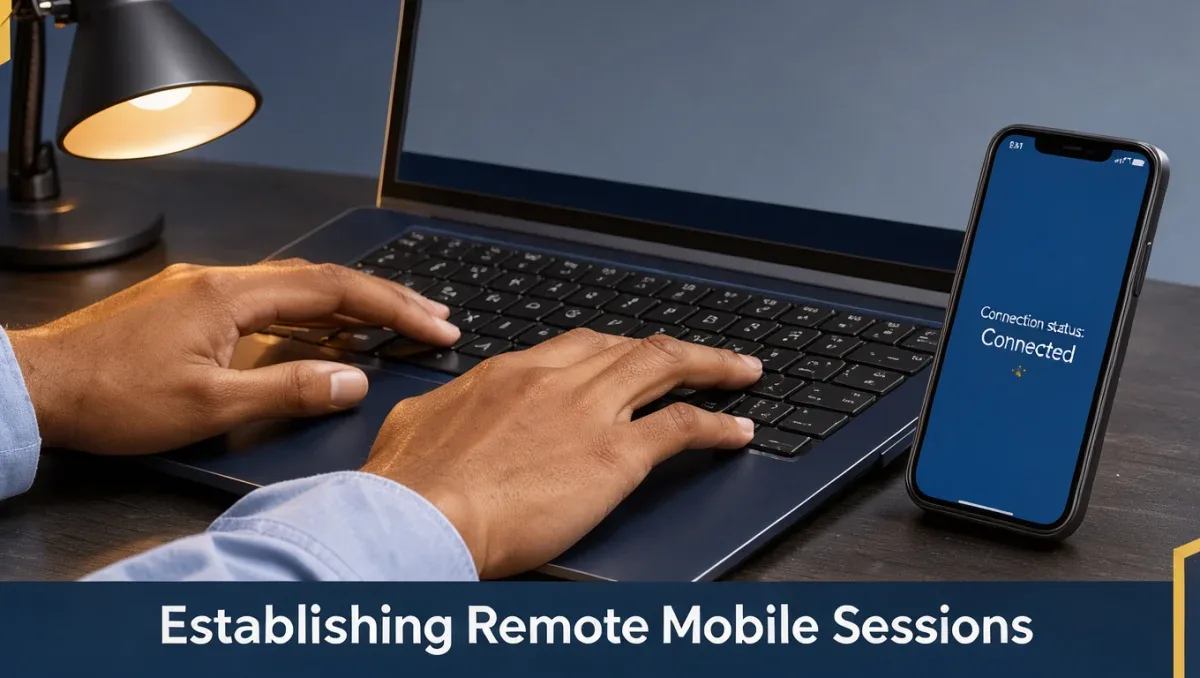
Managing mobile hardware remotely brings challenges that differ from standard desktop support. Teams working with Development tooling often find that permissions reset after operating system upgrades.
- Ignoring aggressive battery saver settings, which can disable background connectivity without warning.
- Failing to coordinate session timing with end users, causing unintended conflicts during live troubleshooting.
- Overlooking firewall policies on corporate Wi-Fi networks that block outbound signaling.
- Neglecting regular updates to both the workstation browser and the remote mobile client.
6. When to Ask for Help
Some technical problems need more support than routine troubleshooting provides. Knowing when to escalate saves time and protects device integrity.
- When an operating system update revokes accessibility permissions and blocks the client from reactivating.
- When corporate network security appliances block connection handshakes even though the account is authorized.
- When hardware faults or repeated power cycling stop the Android device from establishing a network link.
- When unexpected session termination logs point to network-layer conflicts that need official vendor support.
7. Frequently Asked Questions
How long does the initial remote setup take?
Setting up an Android device for remote access usually takes five to fifteen minutes per unit. This covers downloading the mobile agent, granting essential accessibility permissions, and pairing the device with your admin dashboard.
What should administrators check if an Android device goes offline?
Check the device's power state, confirm that cellular or Wi-Fi connectivity is active, and verify that battery management settings have not suspended the client on the handset.
Is root access required to manage Android hardware remotely?
Standard administration tools rely on official accessibility frameworks and modern device management protocols rather than rooting. Staying within standard platform security boundaries protects hardware stability and preserves vendor warranties.
Can multiple technicians manage the same handset at once?
Concurrent access depends on the vendor's architecture and account structure. Review the plan comparison on the official Getscreen.me website to confirm session limits and seat rules.
8. Next Steps
Now that you understand the remote management lifecycle, take concrete steps to solidify your setup in 2026.
- Run a trial connection on a spare test handset before granting access to business-critical devices.
- Create an internal security checklist covering unattended session approval and session termination records.
- Review the official Getscreen.me administration guidelines to confirm current permission requirements for your Android version.
Have a question about choosing software? Send it to the Best Coupon Blogs team through our Development section or follow Best Coupon Blogs on LinkedIn for new reviews and comparisons.