
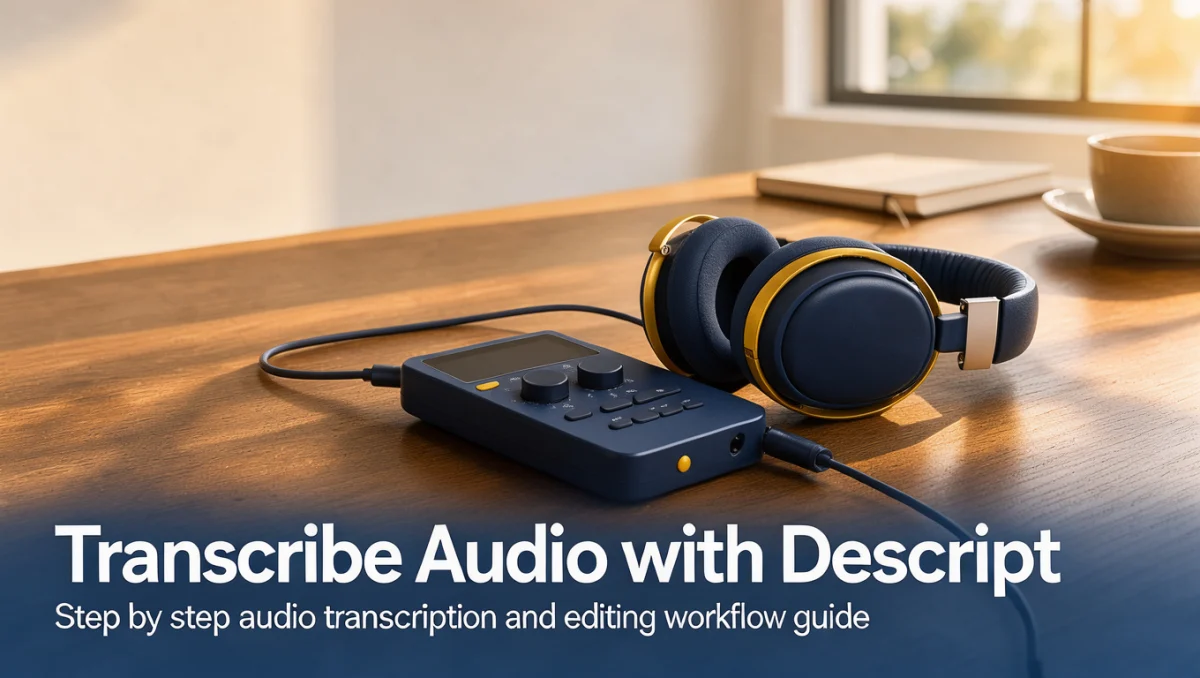
Turning spoken conversations into written text has become a routine part of podcasting, interviewing, and video production. Anyone who wants to know how to transcribe audio with Descript will find that the process starts with clean recordings and ends with a script that can be trimmed, shared, and exported in several formats. Along the way, the platform links every word to its moment in the media, so editing the text also edits the sound.
Before diving into the workflow, it helps to understand where this tool fits. Its text-based editing approach suits creators who think in scripts rather than waveforms. Teams that only need a plain verbatim document, with no media timeline attached, may prefer a dedicated transcription service. Plan limits and allowances change over time, so confirm current transcription minutes and file retention on the official provider website before committing.
Preparing Your Recordings Before Upload
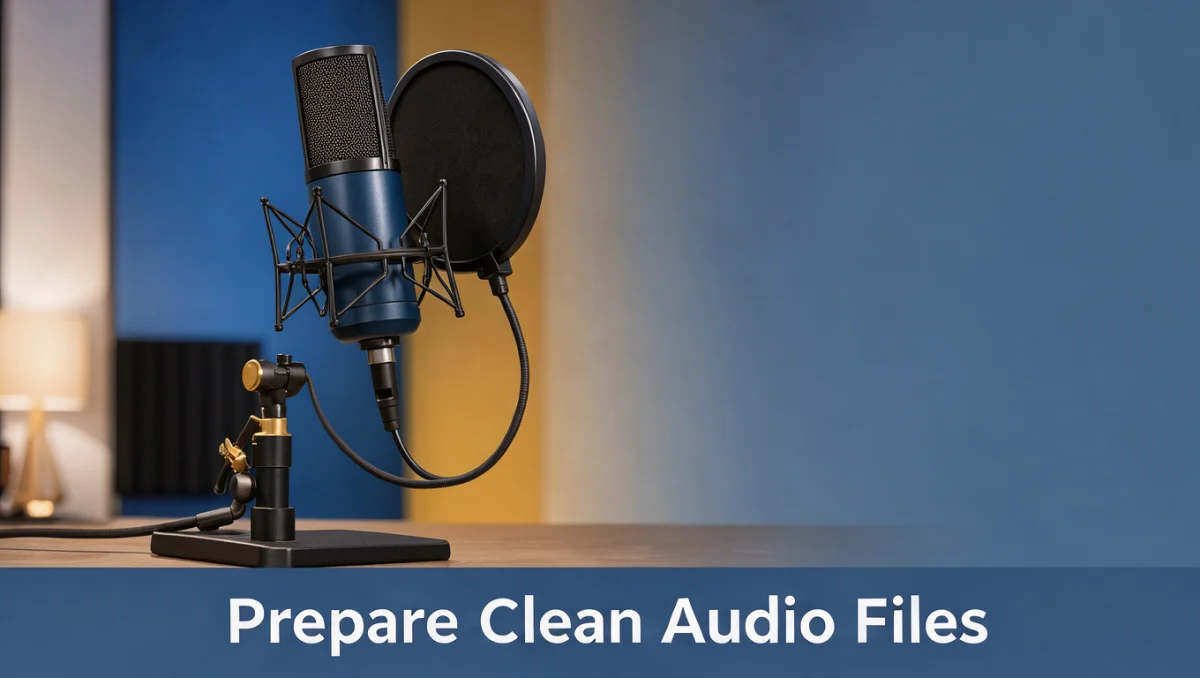
Recording quality shapes how accurately automated speech detection handles dialogue. Clean source files reduce the time you will later spend correcting errors, so a few minutes of preparation pays off across the whole project.
- Reduce background noise: Fans, keyboard clicks, and street sounds can confuse speech engines and produce garbled words.
- Separate speakers where possible: Recording each voice on its own track makes speaker identification far clearer.
- Choose stable file formats: Uncompressed or losslessly compressed files preserve the speech frequencies that recognition relies on.
- Keep microphone distance consistent: Steady mic placement keeps volume even across the full length of the file.
Overlapping conversation and room echo are two of the most common causes of poor output. Testing your microphone setup before a long interview is a simple habit that improves results noticeably.
Step-by-Step: Generating a Transcript
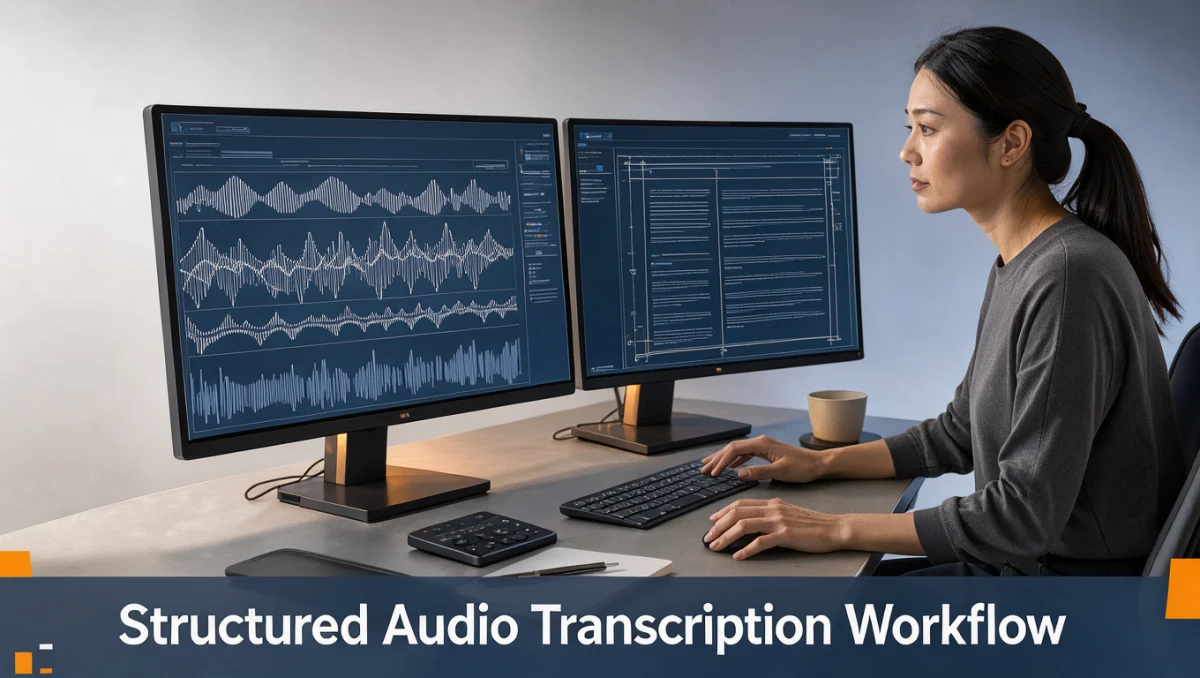
The workflow moves from importing files to exporting a finished document. Each stage has a specific purpose, and rushing past any of them tends to create extra work later.
Set Up a Project Folder
Create a dedicated project for your recordings so that audio files stay grouped and easy to find. Descript can import voice files from local storage or connected cloud locations. Keeping multi-track interview sessions together prevents files from being misplaced during editing.
Start Automatic Transcription
After importing, start the transcription for your files. The software analyses the audio and produces a synchronized text draft displayed alongside the waveform. Note the main language spoken in the recording, since choosing the correct language helps the engine select appropriate vocabulary.
Assign Speaker Labels
Speaker labels turn a block of text into a readable script. Listen to the opening section, then attach names to each voice. Check the labels again wherever speakers trade quick replies, because fast exchanges are where attribution most often goes wrong.
Review and Correct the Text
Read the draft while the audio plays back. Automated systems may struggle with specialised terminology, proper names, and foreign phrases. Correcting words directly in the text also updates the link between each word and its audio, so the edits stay in sync.
Export the Finished Transcript
Export the transcript in the format your distribution requires, whether a plain text file, a subtitle file, or a document. If you also plan to produce a cleaned-up audio file, you can generate it from your trimmed script. Check the official export guidelines to confirm which formats your plan supports.
Practices That Improve Accuracy
Consistent results come from repeatable habits. Standardising these practices across a team saves time on every recurring project.
- Keep a custom vocabulary list: Record industry acronyms, guest names, and technical terms so you can check them quickly in each transcript.
- Learn the playback shortcuts: Pause, rewind, and speed controls speed up proofreading when your hands stay on the keyboard.
- Flag unclear speech early: Mark muffled or whispered passages straight away rather than guessing the intent later.
- Archive the original recording: Keep an unaltered master copy before applying text-based trims or cuts.
Many tools offer options for filler words and pauses. Whether to keep natural hesitations depends on the end use. Articles usually read better with smoothed text, while research documentation often calls for strict verbatim wording.
Mistakes to Avoid
A few common oversights can lower accuracy or complicate team review. Being aware of them keeps projects on track.
- Uploading heavily compressed files: Low-bitrate audio discards detail that helps detect consonants.
- Ignoring the recording room: Echo from hard surfaces makes automated parsing harder.
- Skipping the final manual check: Relying only on automated output risks publishing misheard words and missing punctuation.
- Overwriting source media: Without separate revisions, restoring a trimmed section can be difficult.
When evaluating any media software, look at how it stores project history. Review the official documentation on version retention so your production archive stays safe over long projects.
Who Benefits Most
Podcasters gain the most from editing dialogue through a transcript, since text changes and audio cuts stay aligned without switching between programs. Marketers repurposing webinars into social clips, captions, and blog summaries also benefit from combining text exports with timeline editing. Legal transcriptionists, medical record specialists, and academic researchers who need certified verbatim records may find a standalone transcription service more suitable, as its feature set is built for that single purpose.
Choosing the Right Setup
Compare your project needs against what the software offers. The factors below are worth checking on the official site before subscribing.
| Evaluation Factor | Why It Matters | What to Review on Official Sites |
|---|---|---|
| Transcription allowances | Monthly hours determine how much work fits in your budget | Confirm monthly minute caps for each account option |
| Multi-speaker handling | Panel discussions need clear separation between voices | Check speaker detection and label assignment support |
| Export flexibility | Distribution may require specific subtitle or document formats | Examine supported text, document, and subtitle formats |
| Team collaboration | Shared workspaces let distributed teams annotate the same files | Review permission settings and workspace member policies |
Frequently Asked Questions
Which audio formats work best for automated transcription?
Uncompressed WAV files and high-bitrate MP3 recordings generally give reliable results. Clean recordings with little compression let speech recognition map sounds to words more consistently.
Should I edit a transcript by hand after it is generated?
Yes. Compare the automated text with the original audio to confirm proper nouns, technical terms, and speaker labels. Even strong automated systems benefit from human review before publication.
How does text-based audio editing differ from waveform editing?
Text-based editing lets you cut and rearrange speech by selecting and deleting words in a transcript. Waveform editing requires you to find sound peaks and silent gaps on a timeline by hand.
What should I confirm about transcription allowances before subscribing?
Check the official subscription details for monthly transcription hours and any overage rules. Allowances are usually calculated on the total minutes processed in each billing cycle.
Final Thoughts
Knowing how to transcribe audio with Descript gives you a practical bridge between spoken media and written editing. By working with recordings through text, podcasters, interviewers, and marketing teams can shorten post-production and publish faster. For a quick, media-linked workflow, the platform works well. Organisations that need strict legal transcription or very large batch jobs without any editing features should compare specialised transcription-only tools.
Have questions about your audio setup or software choices? Reach out through https://bestcouponblogs.com/contact/ or follow Best Coupon Blogs on LinkedIn at https://www.linkedin.com/company/bestcouponblogs/ for regular software insights.
See More Artificial Intelligence