
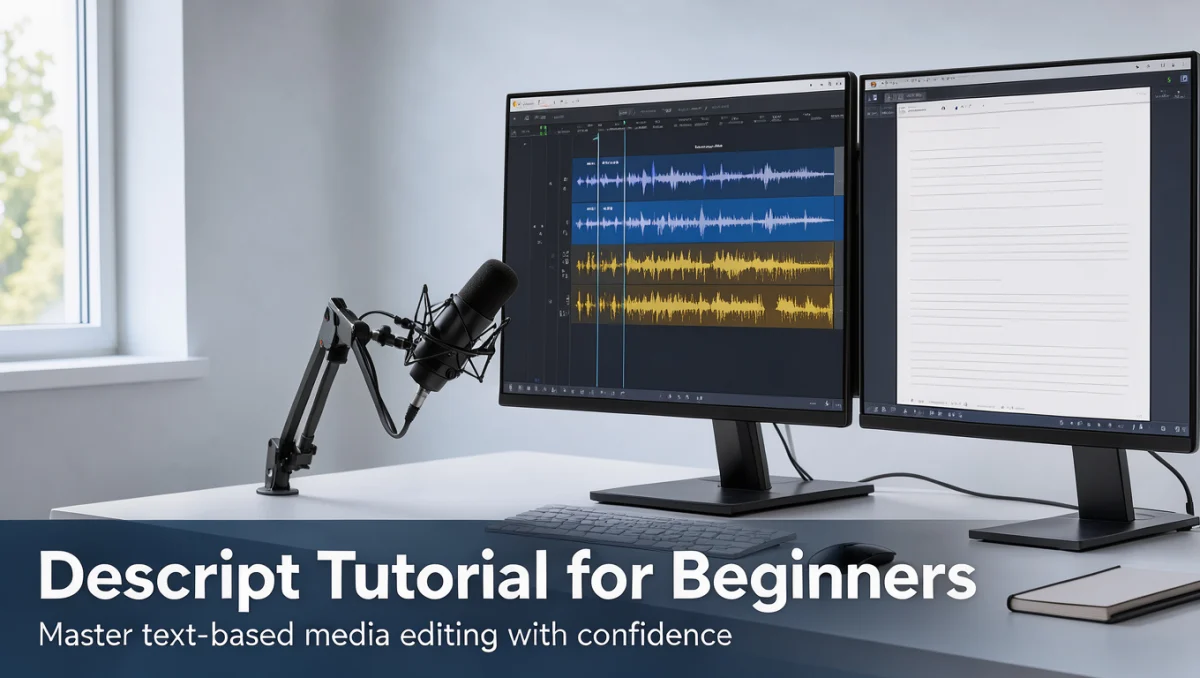
Editing spoken media used to mean scrubbing endlessly through a timeline. Text-first tools change that approach by letting you treat a recording as a document. This descript tutorial for beginners walks through the core steps so you can get productive quickly, whether you are cutting a podcast episode or tightening a talking-head video.
Before diving in, it helps to know what the platform is built for. The software centers on document-style manipulation: you work on an auto-generated transcript, and changes to the text carry through to the audio and video. Understanding this early makes the rest of the workflow feel natural. Our independent assessments from Best Coupon Blogs focus on how efficiently such tools fit real creator workflows.
Quick verdict: With an overall score of 7.8/10, the platform suits podcasters and video creators who want to edit spoken content through its transcript. Editors who need complex color grading or broadcast-grade mastering will be better served by a traditional non-linear video suite.
| Metric | Summary Details |
|---|---|
| bestcouponblogs score | 7.8/10 |
| Best for | Creators who edit audio and video directly through text transcripts |
| Not ideal for | Production teams that need multi-track broadcast color grading |
| Key strengths | Text-based editing, automated transcription, speech correction |
| What to check before buying | Export settings and transcription allowances on the official website |
How We Evaluated the Platform
We assessed the tool against seven bestcouponblogs criteria: features, ease of use, pricing and value, integrations, audience fit, support, and competitive position. Plans and limits change frequently, so confirm current details on the official website before purchasing. This article was researched and drafted with AI assistance, then reviewed and edited by the bestcouponblogs Editorial Team.
Preparing Your Workspace and Recordings
A little preparation prevents most early frustrations. Missing media links, mislabeled speaker tracks, and cluttered project folders usually trace back to skipping this stage. Check your system specifications on the vendor's support pages before starting heavy edits, since audio and video processing draws on storage and memory.
Organizing Your Files
Keep raw video, separate microphone tracks, and supporting visuals in dedicated folders. Adopt a consistent naming convention for recordings before you create the first project. Structured storage makes it far easier to relink assets later and to repurpose them for new episodes.
Recording for Cleaner Transcripts
Transcript accuracy depends heavily on source quality. Record in a quiet room, keep microphone levels balanced, and place each speaker's microphone at a consistent distance. Clean input reduces the number of manual corrections you will need later. For video, stable lighting and steady framing let cutaways blend smoothly across spoken sections.
Getting Started: The Core Workflow
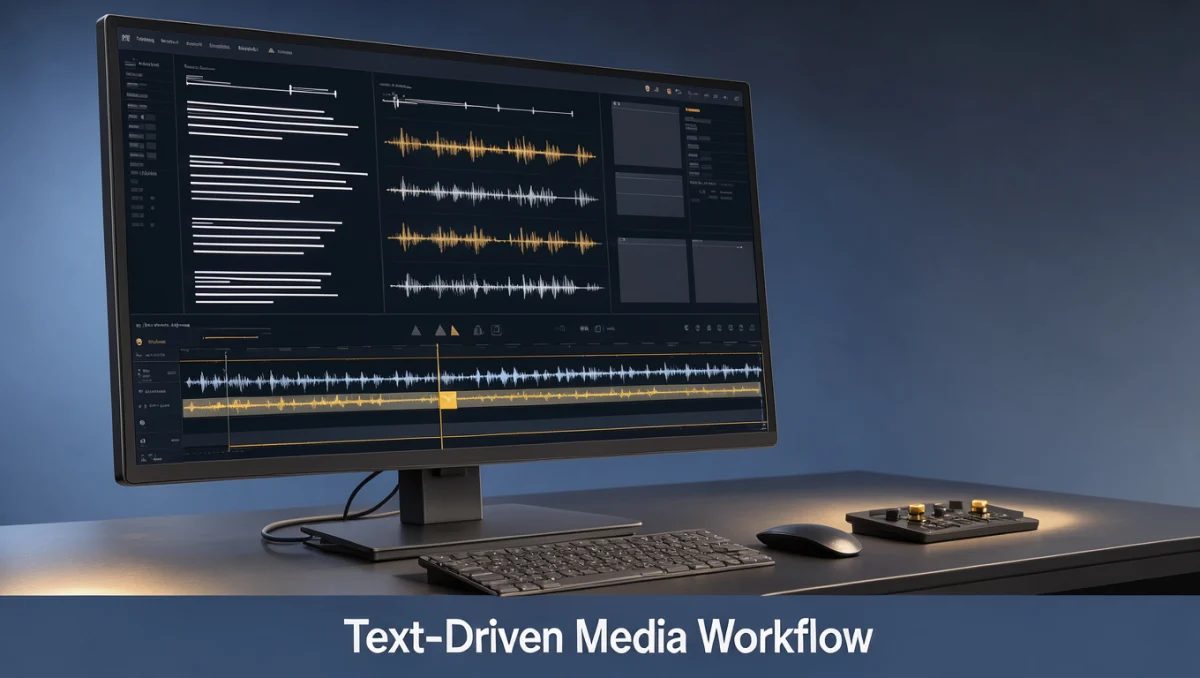
The editing model treats spoken words as paragraphs. Rather than hunting for pauses on a timeline, you read and edit the text, and the matching media follows along.
Creating a Project and Importing Media
Start a new project and drag your recordings into the interface. During import, the software prepares files for transcription and timeline sync. Set your project dimensions to match where the content will be published. Vertical clips for social feeds and horizontal formats for video sites need different frames, and setting this up front avoids awkward cropping later.
Generating and Reviewing the Transcript
After import, automated speech recognition produces a synchronized transcript. Select the language and number of speakers to improve accuracy. Recognition keeps improving, but human review is still essential for names, technical terms, and brand mentions. Fixing these spellings now ensures captions are correct on export, and correction modes let you adjust text without cutting the underlying audio.
Editing Through Text
Editing follows familiar document habits. Highlight a sentence and delete it, and the matching audio and video segment is removed as well. This makes it fast to strip out digressions or false starts. To reorder content, cut a paragraph and paste it elsewhere; the linked media moves with it. Structuring an interview or lesson this way is much quicker than rearranging clips by hand.
Handling Filler Words and Pauses
Conversation naturally includes filler words, hesitations, and silent gaps. The software can scan for hesitation terms so you can review and clear them systematically. Be selective with silence, though. Trimming every breath makes speech sound mechanical. Listen for natural rhythm and keep the pauses that give the conversation its character.
Adjusting the Timeline and Visuals
Beneath the script sits the timeline, showing waveforms, video tracks, and visual layers. Occasionally you will need to nudge boundaries so transitions between phrases feel natural. Adjusting fade handles softens abrupt room-noise changes at splice points. For visuals, place titles, captions, and overlay footage above the main speaker track, and check that on-screen text stays readable on both mobile and desktop.
Exporting and Publishing
Choose output formats based on where the content will go. Video renders to standard containers, while podcasts export as audio files. Transcripts and subtitles can also be exported separately. Before finalizing, confirm quality and compression settings, then play the export on a phone or headphones to check audio balance and visual clarity.
Best Practices for Clean Output
Deliberate habits protect your projects from jarring audio cuts, mismatched captions, and awkward pacing.
Matching Strategy to Content Type
Podcasts benefit from natural vocal dynamics, so keep breaths and short reflective pauses. Over-trimming an interview strips out personality. Tutorials, by contrast, need concise delivery and clear visual references. Removing repeated phrases and pairing spoken steps with screen captures keeps viewers engaged, and grouping scripts into thematic chapters helps them follow along.
Managing Versions
Long projects accumulate revisions. Duplicate your script before major restructuring so you have a safe fallback. If a rearrangement hurts the pacing, you can revert without rebuilding lost segments. Clear version labels also prevent confusion when sharing drafts with collaborators, and archiving finished projects keeps source assets available for future repurposing.
Common Mistakes to Avoid
Editors new to text-driven workflows often run into the same avoidable problems.
Trusting Automatic Transcripts Blindly
Speech recognition is fast, but it confuses homophones and struggles with some accents. Always proofread captions against the audio before rendering. Also be careful: correcting spelling in a way that deletes words will remove matching audio from the timeline. Use the dedicated text-correction function when you only want to fix typography.
Ignoring Room Tone
Cutting words out of noisy recordings causes sudden shifts between background hum and dead silence, which sound harsh. Apply subtle crossfades at splice points to smooth these transitions. Treat heavy background noise before making tight dialogue edits, and be cautious with noise reduction, since aggressive settings can introduce robotic vocal artifacts. Capturing clean audio from the start is always the safest approach.
Who Should Use This Tool
The right fit depends on your publishing rhythm and production complexity.
Freelance Podcasters and Editors
Audio producers handling interview episodes benefit most. Searching an hour of dialogue by text replaces tedious scrubbing, letting freelancers turn around polished episodes faster and handle higher volumes.
Small Business Content Teams
Marketing teams producing product overviews, case studies, and social clips can edit without deep non-linear video experience. Working with text makes coherent presentations achievable for people who would be intimidated by a multi-track interface.
Educators and Course Creators
Automated captions and easy lecture trimming make this useful for digital curriculum. Updating a module is simple when you can find and revise a single sentence without re-editing the whole lesson.
Teams That May Need Alternatives
Narrative cinema, high-end commercial broadcast, and complex motion graphics depend on advanced color science, compositing, and audio mastering standards. Dedicated non-linear editors serve those workflows better.
Frequently Asked Questions
What audio formats should I prepare before starting?
Uncompressed WAV or AIFF files give the cleanest dynamic range for editing. Compressed MP3 or AAC files work reasonably well for voice-heavy recordings, but uncompressed sources avoid artifacts during processing. Check the official website for current format guidance.
How can I share transcripts with a review team?
Export the transcript as a text document or shared link so collaborators can suggest copy changes without touching the media. Reviewers can highlight passages or propose pacing changes in the text, and you can apply final timeline cuts once the structure is settled.
What affects transcription accuracy?
Microphone quality, room acoustics, overlapping speech, and enunciation all matter. Single-speaker recordings made with directional microphones in treated rooms are transcribed far more accurately than multi-speaker discussions captured on one mic.
When should I adjust audio on the timeline instead of the text?
Use the timeline for breath sounds, subtle crossfades, and aligning background music. Text editing handles structural cuts well, while the timeline handles micro-level acoustic transitions. Combining both gives the most natural spoken flow.
Final Verdict
This platform offers a text-centered approach that simplifies dialogue editing, podcast production, and content repurposing. By bridging word processing and timeline editing, it speeds up post-production for voice-driven media.
| Criterion | Score /10 | Reason |
|---|---|---|
| Features | 8.5/10 | Document-style editing and automated transcription streamline spoken media |
| Ease of Use | 8.0/10 | Text-based editing is intuitive, though timeline integration takes practice |
| Pricing and Value | 7.5/10 | Subscription tiers vary by transcription allowance, so audit your monthly usage |
| Integrations | 7.0/10 | Export workflows connect with major production suites; verify direct links |
| Audience Fit | 8.5/10 | Especially suited to podcasters, educators, and creators focused on dialogue |
| Support | 7.0/10 | Knowledge bases offer workflow guides; response channels depend on your plan |
| Competitive Position | 8.0/10 | Distinct from traditional timeline editors by prioritizing transcript editing |
| Overall score | 7.8/10 | Balanced rating reflecting efficiency for dialogue editors alongside specialized trade-offs |
If you prioritize fast dialogue cutting and easy caption production, this tool is an efficient addition to your toolkit. Teams handling complex broadcast grading or multi-camera cinema work should confirm whether conventional video software better meets their mastering requirements.
Readers with specific workflow questions can reach the editorial team at https://bestcouponblogs.com/contact/ or connect with bestcouponblogs on LinkedIn at https://www.linkedin.com/company/bestcouponblogs/.
See More Artificial Intelligence