
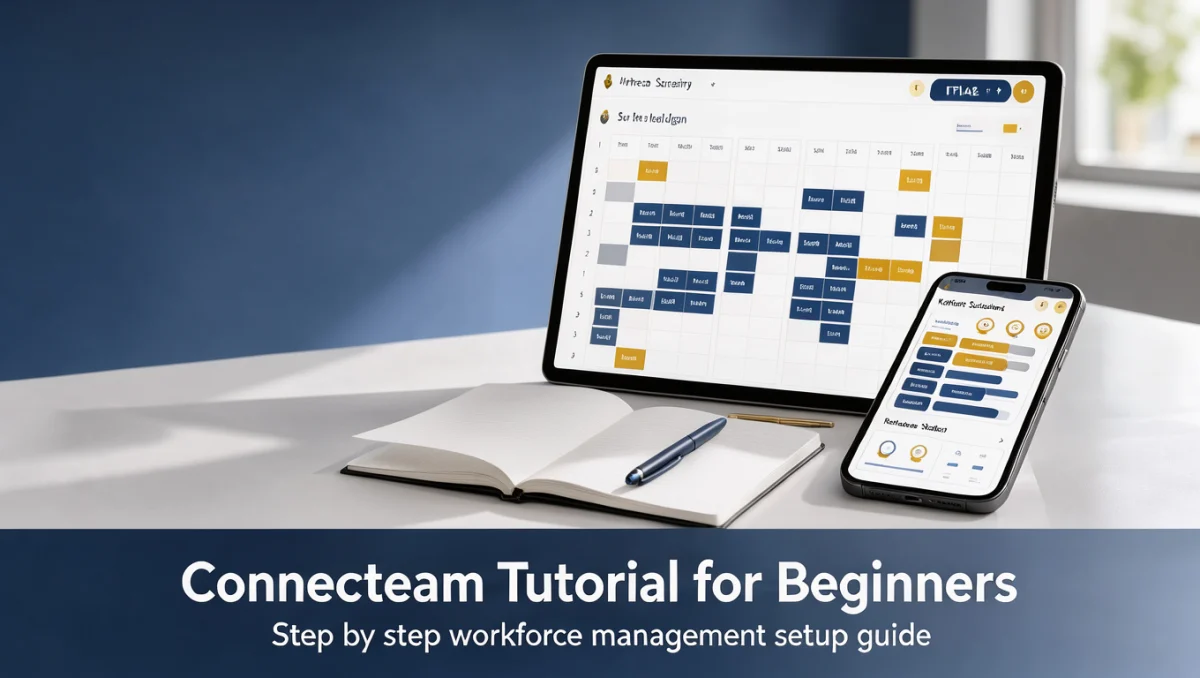
Launching a new workforce platform works best when you first map your team's structure. Before opening the admin dashboard, sketch out who does what, which branches they belong to, and who needs permission to edit schedules. This preparation makes the rest of the connecteam tutorial for beginners journey far simpler.
Why Structured Workforce Software Matters
Many organizations are moving away from scattered spreadsheets and group chats toward a single system that tracks shifts, attendance, and updates. Clear accountability across daily operations is the main payoff. At Best Coupon Blogs, we judge operational tools by how well their workflows hold up in everyday use, not by marketing promises.
Preparing Your Setup Before You Begin

Map Your Roles and Reporting Lines
List every position, from frontline employees to supervisors and general managers. Note each role's responsibilities, who they report to, and where they work. A clear hierarchy ensures admin permissions match real job duties.
Identify Your Most Urgent Workflow
Decide which problem to solve first. Many teams begin with shift publishing and hour logging, then add custom forms or training content later. Starting with one critical need avoids overwhelming your team.
Set Clear Admin Rules
Determine who manages the system, who edits schedules, and who only views information. Limiting schedule changes to designated shift leads helps prevent conflicting rosters and protects payroll accuracy.
Getting Started: A Six-Phase Workflow
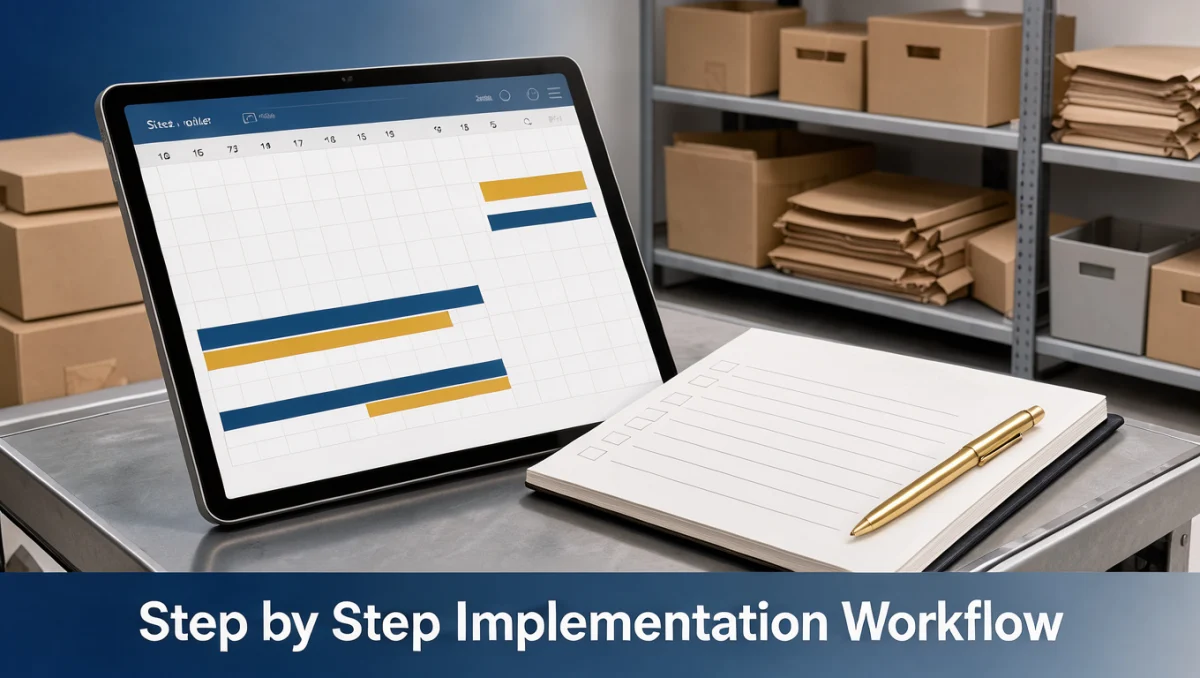
Follow these phases in order to adopt the platform smoothly across your organization.
Phase 1: Build Your Organization Structure
Set up your business profile, departments, and locations. Grouping staff by branch or trade lets managers send relevant updates and publish shifts without notifying unrelated teams.
Phase 2: Configure Time Tracking and Shift Rules
Define standard hours, break rules, and payroll cutoff dates that match your company policy. Confirm shift swap and approval rules on the official Connecteam website so your setup meets local labor record requirements.
Phase 3: Create Communication Channels
Set up formal broadcast channels for company announcements and separate group chats for shift leads. Reserving broadcasts for management notices keeps important updates from getting lost in casual conversation.
Phase 4: Digitize Checklists and Forms
Convert paper inspection sheets, opening checklists, and vehicle safety logs into digital templates. Staff can then submit data straight from job sites with built-in validation.
Phase 5: Run a Pilot With Trusted Supervisors
Test the configured system with a small group before rolling it out company-wide. Feedback from real shifts exposes permission bottlenecks and shows which instructions need refining.
Phase 6: Onboard Frontline Staff
Send invitations and provide simple guidance on profile setup, clocking in, and confirming shifts. A structured launch reduces help-desk requests and helps employees new to digital scheduling feel confident.
Best Practices for Team Adoption
- Publish schedules at the same time each week so shift staff know when to expect them.
- Keep early digital forms short so field employees can finish logs without disrupting their work.
- Appoint branch champions who can help colleagues with account verification and basic mobile navigation.
- Archive outdated announcements so staff only see current notices.
- Review modern tools in the Collaboration & Productivity space to keep internal practices aligned.
Common Mistakes to Avoid
Overcomplicating Initial Permissions
Too many admin privileges can cause accidental schedule overwrites, while overly strict settings block supervisors from resolving shift swaps. Keep supervisory tiers simple and tied to actual job duties.
Launching Too Many Features at Once
Turning on scheduling, task delegation, training courses, and incident logs all at once overwhelms frontline workers. Master attendance routines first, then add advanced forms.
Neglecting Profile Updates
When employees change branches or leave, failing to update their status leads to misdirected announcements. Schedule regular admin audits to keep rosters accurate.
Frequently Asked Questions
How should I structure user groups for multiple locations?
Group users by branch or department so supervisors can publish location-specific rosters and announcements. This keeps notifications relevant to each employee's workplace.
What should I verify before enabling digital time tracking?
Confirm rounding rules, overtime calculations, and approval workflows with your payroll team first. Checking these settings early prevents discrepancies and keeps records accurate.
How can small businesses ensure smooth adoption?
Begin with a single core feature, such as shift viewing, before adding forms and task management. Clear expectations and hands-on supervisor support help deskless workers adapt quickly.
Where can I find details on specific features?
Check administrative capabilities, limits, and subscription options directly on the official Connecteam website to confirm the plan fits your organization.
Final Thoughts
Connecteam offers an approachable environment for managing deskless teams, bringing shift planning, attendance tracking, and communication into one platform. Large enterprises may still need dedicated HR systems, but for everyday field coordination, it handles the core challenges well.