
Combining a task manager with a calendar gives you a clear view of what needs doing and when there is time to do it. For anyone looking into a todoist apple calendar setup, the goal is usually to keep deadlines, recurring duties, and project milestones visible alongside meetings, without accidentally double-booking the working day. A carefully chosen workflow can turn a loose to-do list into a realistic schedule.
Task apps and calendar apps solve different parts of the same problem. A task list records what must be completed, while a calendar blocks out the hours in which work will happen. Before committing to a subscription, it helps to examine how your scheduling habits fit with structured list tracking, and whether you truly need tasks to appear inside your calendar grid.
Quick verdict: With an overall score of 8.1 out of 10, this combination suits busy professionals, freelancers, and project managers who want organized task structure with clear schedule awareness. It is less suitable for organizations that need built-in enterprise resource planning or complex multi-tier portfolio management without additional tools.
| Evaluation Dimension | Summary Assessment |
|---|---|
| Best Coupon Blogs score | 8.1 / 10 |
| Best for | Professionals and teams who organize task lists alongside daily schedule commitments |
| Not ideal for | Organizations that want built-in enterprise resource planning and unified finance management |
| Key strengths | Organized task hierarchies, date assignment, recurring schedules, and multi-device access |
| What to check before buying | Confirm on the official vendor website which subscription tiers include calendar feed sharing and synchronization |
1. How Best Coupon Blogs Reviewed Todoist
This review examines what Todoist is designed to do, who it serves, and how it compares with similar tools. We assessed it against seven criteria: features, ease of use, pricing and value, integrations, audience fit, support, and competitive position. Plans, prices, and limits change frequently, so we highlight what to confirm on the official website before purchasing. This article was researched and drafted with the help of AI tools, then reviewed and edited by the Best Coupon Blogs Editorial Team.
2. What Todoist Is and Who It Is For
Todoist is a dedicated task management application built to help individuals, freelancers, and working teams capture, organize, and prioritize daily work. Developed by Doist, it focuses on turning incoming ideas, action items, and project milestones into manageable, trackable lists. When paired with a calendar app such as Apple Calendar, it links what needs doing with the time slots reserved on your calendar.
The platform is aimed at knowledge workers, project coordinators, educators, and creative freelancers who need structural control over complex personal and professional task loads. Buyers comparing productivity software often weigh standalone list managers against broader office suites to decide whether focused task design delivers better results. If your daily schedule lives on a personal calendar, how tasks interact with appointments becomes a central buying consideration.
3. Core Features and Calendar Coordination
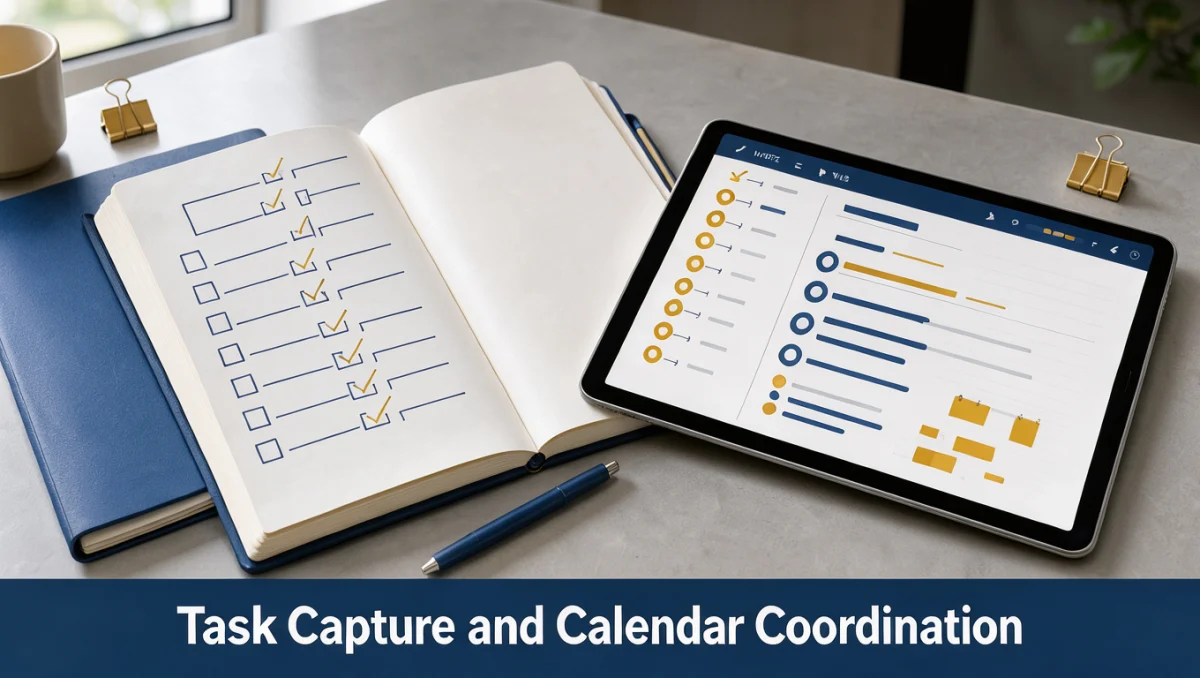
Understanding task management software means examining how it works. These platforms generally handle list creation, deadline scheduling, categorization, and progress tracking across individual or shared workstreams.
3.1. Task Capture and Natural Language Parsing
Task creation lets you type action items quickly, with dates, priorities, and recurring patterns parsed automatically from the phrasing. For example, writing a deadline into a task title turns that item into an active commitment tied to a specific date. This reduces manual clicking and keeps administrative effort low during busy days.
3.2. Project Organization and Sub-Task Hierarchies
Grouping tasks into projects, sections, and indented sub-tasks adds structure. Teams can separate client deliverables into distinct boards or lists, while individuals can keep personal responsibilities apart from work objectives. Sub-tasks break complex initiatives into sequential actions, so each phase stays actionable.
3.3. Recurring Schedules and Calendar Event Mapping
Recurring task features handle obligations that repeat daily, weekly, monthly, or on custom cycles. When these dates sync with an external calendar app, scheduled items can appear alongside appointments and conference calls. Check the official vendor documentation to see how external calendar feeds display recurring tasks, since refresh frequency can vary between calendar clients.
3.4. Priority Levels, Labels, and Custom Filters
Priority markers and custom labels let you sort tasks by context, urgency, or required energy. Custom filters create dedicated views, such as tasks due today or urgent work tied to a specific client label. This keeps critical obligations visible before their calendar blocks arrive.
4. Ease of Use and Learning Curve
The interface is minimal, keeping screen clutter low so you can focus on your obligations. Adding a task takes only a few keystrokes, and navigation remains straightforward for beginners who want quick organization without extensive training.
The learning curve is gentle for basic checklist management, though mastering nested filters, label conventions, and external calendar subscriptions requires deliberate setup. Users unfamiliar with calendar feed URLs or sync settings may need to consult help resources to align refresh intervals between their task lists and calendar views.
5. Pros and Cons
Every software setup involves trade-offs that buyers should weigh against their daily workflow.
5.1. Advantages
- A clean interface that keeps daily tasks front and center without visual distractions.
- Flexible natural language input that converts typed dates into scheduled reminders.
- Hierarchical project structure with sections and nested sub-items for layered tracking.
- Cross-device availability that allows task reviews on desktop and mobile.
5.2. Limitations
- External calendar feeds can lag depending on the refresh interval of the third-party calendar.
- No built-in spreadsheet, document authoring, or accounting features found in broader business platforms.
- Advanced sharing controls and activity history may be restricted, so teams should verify tier specifications on the official vendor website.
6. Todoist vs Similar Tools
Task management buyers often compare several options to find the tool that matches their operational focus.
6.1. Comparison with TickTick
TickTick offers task tracking with a focus on built-in calendar grid views, habit tracking, and timers. While TickTick includes native time-blocking views, Todoist concentrates on structured list organization, natural language input, and flexible project filtering. Buyers who want an all-in-one timer and calendar grid may prefer TickTick, while those valuing minimalist task architecture and a mature ecosystem of connections often lean toward Todoist.
6.2. Comparison with Asana
Asana targets medium to large organizations that need multi-stage workflow management, dependency tracking, and cross-department portfolio dashboards. Todoist, by contrast, focuses on lightweight task execution for individuals, freelancers, and small teams. Organizations with heavy governance requirements usually find Asana better suited to project oversight, while professionals seeking straightforward personal productivity find Todoist quicker to deploy.
6.3. Comparison with Any.do
Any.do combines daily agenda planning with reminders and focuses heavily on mobile planning and calendar pairing. Todoist offers deeper project nesting, filtering logic, and custom label hierarchies. Teams that need structured task delegation generally find Todoist more adaptable to multi-step work breakdowns.
7. Who Should Use Todoist
The right productivity software depends on your role, team size, and the complexity of your daily schedule.
7.1. Freelancers and Solo Consultants
Independent professionals juggling several clients benefit from separating deliverables into dedicated projects while mapping key deadlines to a personal calendar. Color-coding priorities and assigning specific dates helps solo operators avoid missing client milestones.
7.2. Small Business Owners and Department Managers
Leaders who direct small teams can assign responsibilities, track completion dates, and monitor project stages without heavy administrative overhead. It offers a shared task framework without requiring lengthy onboarding.
7.3. Knowledge Workers and Office Staff
Employees balancing meetings and administrative duties can capture action items from conferences and email threads in their task lists. Pairing these with a personal calendar helps ensure follow-ups are not lost between appointments.
7.4. Students and Academic Researchers
Students tracking assignments, exam dates, and research milestones can organize coursework by semester and subject. Recurring tasks support routine reading and weekly study habits.
7.5. Who Should Look Elsewhere
Organizations that need integrated billing, timesheet invoicing, or complex Gantt chart dependency calculations will find standalone task managers insufficient. Teams that require comprehensive enterprise resource planning should consider specialized project portfolio platforms.
8. How to Choose the Right Plan
Task management platforms usually offer several tiers, from introductory individual access to expanded team collaboration. Because vendors revise plan contents and seat limits, confirm all current limits on the official vendor website before subscribing.
| What to check on the official plan comparison page | Why it matters for your workflow |
|---|---|
| Calendar feed and two-way synchronization permissions | Determines whether task dates appear in external calendar software and how quickly updates transfer |
| Active project and task allocation limits | Ensures ongoing client and personal workloads stay within allowable boundaries |
| Team collaboration and user seat permissions | Dictates how many collaborators can share projects, assign tasks, and comment |
| File attachment and media upload allowances | Affects whether project briefs, reference PDFs, and assets can attach directly to tasks |
| Activity log and historical recovery windows | Ensures teams can audit completed work or restore accidentally deleted projects |
Readers can review independent software evaluations from Best Coupon Blogs to balance features against budget before committing to a purchase.
9. FAQ
9.1. How does a task manager differ from a digital calendar?
A task manager organizes action items by project, priority, and completion status, focusing on what needs to be done. A digital calendar reserves specific blocks of time, focusing on when events and appointments occur. Using both together helps ensure that to-do items fit realistically within your available working hours.
9.2. What should buyers check regarding calendar sync speed?
Verify whether your chosen connection relies on periodic calendar feed subscriptions or real-time synchronization. Standard subscription feeds often update on the calendar app's own schedule, which can delay the appearance of a rescheduled task on your agenda.
9.3. When should a team upgrade to a collaborative plan?
Consider upgrading when several contributors need shared access to project boards, task assignment, centralized administrative billing, or shared template libraries. Individual plans focus on personal task loads, while team tiers provide administrative oversight across multiple accounts.
9.4. How should professionals handle recurring tasks across external calendars?
Confirm how the task application formats repeating deadlines when publishing feeds to external calendar programs. Some calendar apps display only the next upcoming instance of a recurring task, while others map repeating patterns across future weeks, which affects long-term calendar clarity.
9.5. What factors determine whether a standalone task app fits your business?
Evaluate whether your existing software already includes adequate task assignment features within your email or project suite. If current tools lack flexible labeling, mobile capture, or intuitive sorting, a dedicated task management app can improve execution speed and deadline adherence.
10. Final Verdict
| Criterion | Score /10 | Reason |
|---|---|---|
| Features | 8.8 | Extensive list management, quick natural language input, recurring schedules, and flexible filtering. |
| Ease of Use | 9.0 | Clean, uncluttered interface with a minimal learning curve for creating and sorting daily tasks. |
| Pricing and Value | 8.0 | Subscription tiers scale functionally, though buyers should verify current plan details on the official pricing page. |
| Integrations | 7.5 | Supports external calendar connections, but sync timing depends on the calendar feed refresh rate. |
| Audience Fit | 8.5 | Well suited to freelancers, knowledge workers, and small teams needing structured personal productivity. |
| Support | 7.0 | Buyers should verify official support channels and documentation before deploying across large groups. |
| Competitive Position | 8.2 | Holds a strong position against specialized productivity tools through fast input and focused list design. |
Overall score: 8.1 / 10
For freelancers, knowledge workers, and collaborative teams seeking structured daily clarity, pairing Todoist with a personal calendar provides a dependable framework for tracking deadlines and managing agendas. Organizations that require native time tracking, billing, or enterprise project governance should look at broader business management systems to meet those needs.
Readers with questions about software selection or workflow setup can reach out through https://bestcouponblogs.com/contact/ or follow Best Coupon Blogs on LinkedIn at https://www.linkedin.com/company/bestcouponblogs/ for ongoing productivity software analysis.
See More Collaboration & Productivity