
bestcouponblogs may earn a commission when you buy through links on this page, at no extra cost to you. This does not affect our ratings.
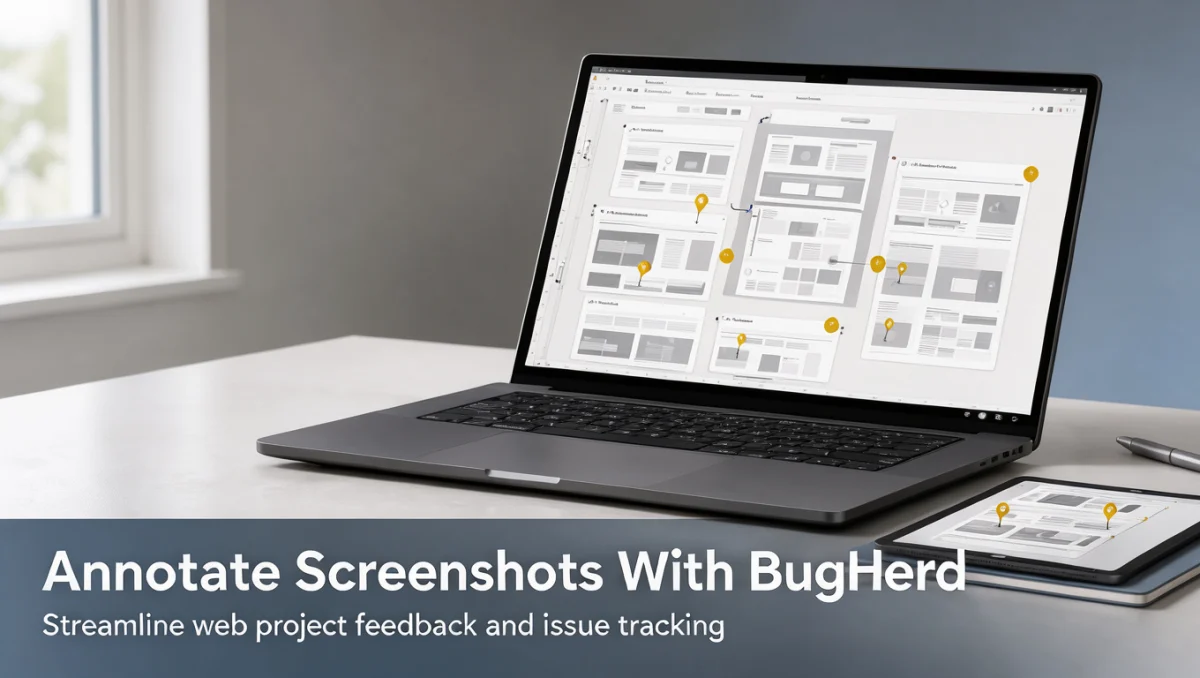
Learning how to annotate screenshots with BugHerd starts with capturing the exact webpage state, pinning the visual problem onto its target element, and writing a description clear enough for developers to reproduce it. At Best Coupon Blogs, we assess visual feedback tools that help teams communicate cleanly without juggling spreadsheets or tangled email chains.
Visual review platforms let designers, QA testers, and project managers turn vague stakeholder remarks into concrete work items. Once the annotation routine is second nature, teams stop losing time on layout shifts, broken components, and typography corrections during live website reviews.
Quick answer: To get comfortable with how to annotate screenshots with BugHerd, open the page, identify the visual defect, mark the precise element that needs changing, add context and reproduction steps, and assign the ticket to the right person. Always double-check current extension settings on the official BugHerd website.
| Evaluation aspect | Details for your team |
|---|---|
| Who this guide is for | QA testers, design leads, project managers, and digital agencies gathering visual client feedback. |
| What you need before starting | An active workspace login, permission to post to the project, the target website URLs, and the browser extension installed. |
| What you will have at the end | A repeatable markup routine, precise issue records, and an organized review loop across team milestones. |
1. How Best Coupon Blogs Put This Guide Together
This review pairs what the software covered here is designed to do with the Best Coupon Blogs buying framework, so you can choose the option that suits your business. Plans, pricing, and limits shift regularly, so we flag what to verify on the official website before purchasing. This article was researched and drafted with AI assistance, then reviewed and edited by the Best Coupon Blogs Editorial Team.
2. Before You Start
Preparation before creating annotations prevents broken workflows and missing context. Checking your assets in advance means every logged ticket carries the technical details your development team needs.
- Project access check: Confirm your account can create tickets on the target workspace before client reviews begin.
- Stable test environment: Make sure the staging or live URL loads without login walls that could interfere with screen capture.
- Shared naming conventions: Agree on consistent terms for bugs, layout changes, and copy edits across all stakeholders.
- Baseline technical details: Record which viewport sizes, operating systems, and browser setups reviewers should test against.
3. Step-by-Step Workflow for Annotating Screenshots in BugHerd
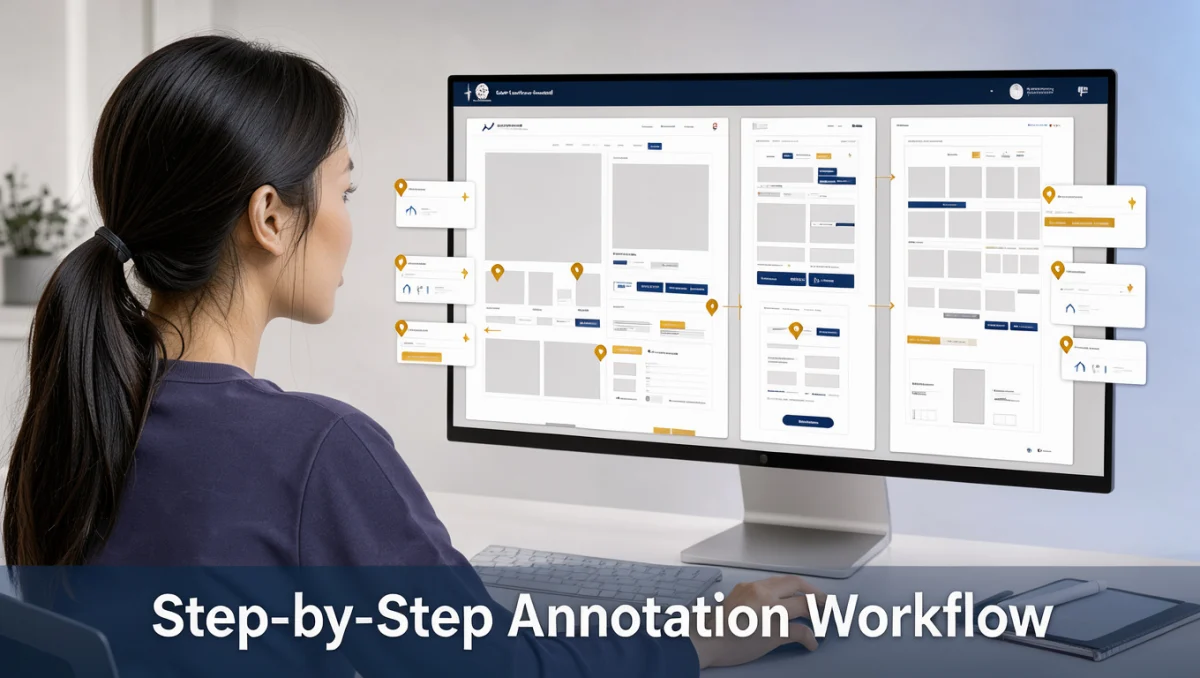
A standard markup method keeps ticket quality consistent across the team. Because software vendors update their interface from time to time, confirm exact button locations in the official BugHerd documentation.
- Open the target page state: Load the exact screen, modal, or responsive view showing the layout issue so the captured background is accurate.
- Select the affected element: Click the broken button, banner, or text block so your feedback is anchored right where the fix is needed.
- Write an actionable description: Explain what is happening versus what should happen, so developers can act without extra meetings.
- Attach reference material: Add brand guidelines or design files alongside the capture to give instant visual context.
- Tag and assign the task: Set a severity level and route the item to the right team member for verification and fixing.
4. Your First 30 Days
Adopting visual markup software means building repeatable habits across each project phase. Use this four-week plan from Best Coupon Blogs to make reliable review practices routine for everyone on your team.
| Week | Routine to build | Why it matters |
|---|---|---|
| Week 1 | Run an internal walkthrough on a staging page. | Makes sure everyone knows how to log feedback and select precise visual targets. |
| Week 2 | Standardize severity labels and assignment rules. | Stops triage backlogs by separating urgent regressions from minor style tweaks. |
| Week 3 | Train external clients and non-technical stakeholders. | Replaces vague email reports with on-screen pin placement that developers can act on. |
| Week 4 | Audit ticket closure rates and duplicate submissions. | Reveals lingering communication gaps and improves future QA cycles. |
5. Common Visual Feedback Mistakes and How to Avoid Them
Visual feedback tools speed up collaboration, but process errors can still slow resolution. Keeping review habits disciplined protects your backlog from clutter.
- Vague descriptions: Avoid notes like “layout broken”; state the exact CSS or content change needed instead.
- Bundling unrelated issues in one capture: Create separate notes for each visual component so progress can be tracked independently.
- Skipping responsive checks: Confirm whether a defect appears on desktop, tablet, and mobile before submitting the task.
- Closing tickets without re-testing: Verify the marked areas on the updated build before calling an item finished.
6. When to Ask for Technical or Team Help
Some situations go beyond simple on-screen notes. Recognizing these escalation points helps avoid project delays.
- Persistent script blocking: Involve your network administrator if security firewalls stop the capture extension from loading on secure staging domains.
- Backend exceptions: Bring in lead engineers when a visual defect comes from a database connection failure rather than frontend styling.
- Design scope disputes: Escalate to project managers when client annotations conflict with approved wireframes or contract terms.
- Permission roadblocks: Contact the workspace administrator when guest reviewers cannot submit or view assigned tickets.
7. Frequently Asked Questions
7.1. How much effort does learning screenshot annotation require?
Most web reviewers can learn on-screen annotation in less than an afternoon. Non-technical clients usually get comfortable with clicking target elements and submitting comments quickly, while project managers may need several days to align labeling conventions across larger client teams.
7.2. What should you do if an annotation captures the wrong element?
Reviewers can edit existing notes or move marked pins directly on the project canvas. When dynamic elements such as dropdown menus close before capture, check the official BugHerd documentation for the latest hotkey options that freeze active states.
7.3. Is a technical specialist required to manage visual feedback?
A technical specialist is not required to use standard annotation tools. However, having a designated QA lead or project manager triage incoming entries ensures developers receive structured tasks with realistic priority rankings.
7.4. How can teams prevent duplicate screenshot notes?
Reviewers should filter open tasks on the current page before logging new items. Setting dedicated review windows for each testing group also prevents several people from submitting the same cosmetic issue at once.
8. Next Steps
Putting structured feedback workflows in place makes deployments more predictable and keeps cross-functional teams aligned throughout website development. Take these immediate actions to refine your feedback cycle.
- Audit your active web projects to find where visual communication currently stalls.
- Send clear screenshot labeling rules to all client stakeholders before user acceptance testing begins.
- Confirm browser requirements and workspace member roles on the official BugHerd pricing page and admin settings.
- Schedule weekly triage meetings to process annotated tickets and verify completed frontend changes.
Have a question about choosing software? Reach out to the Best Coupon Blogs team through our contact page, or follow Development coverage for new reviews and comparisons.